Managing bookmarks

Notes can be used for bookmarks and display an external link icon on the note preview in the note list view.
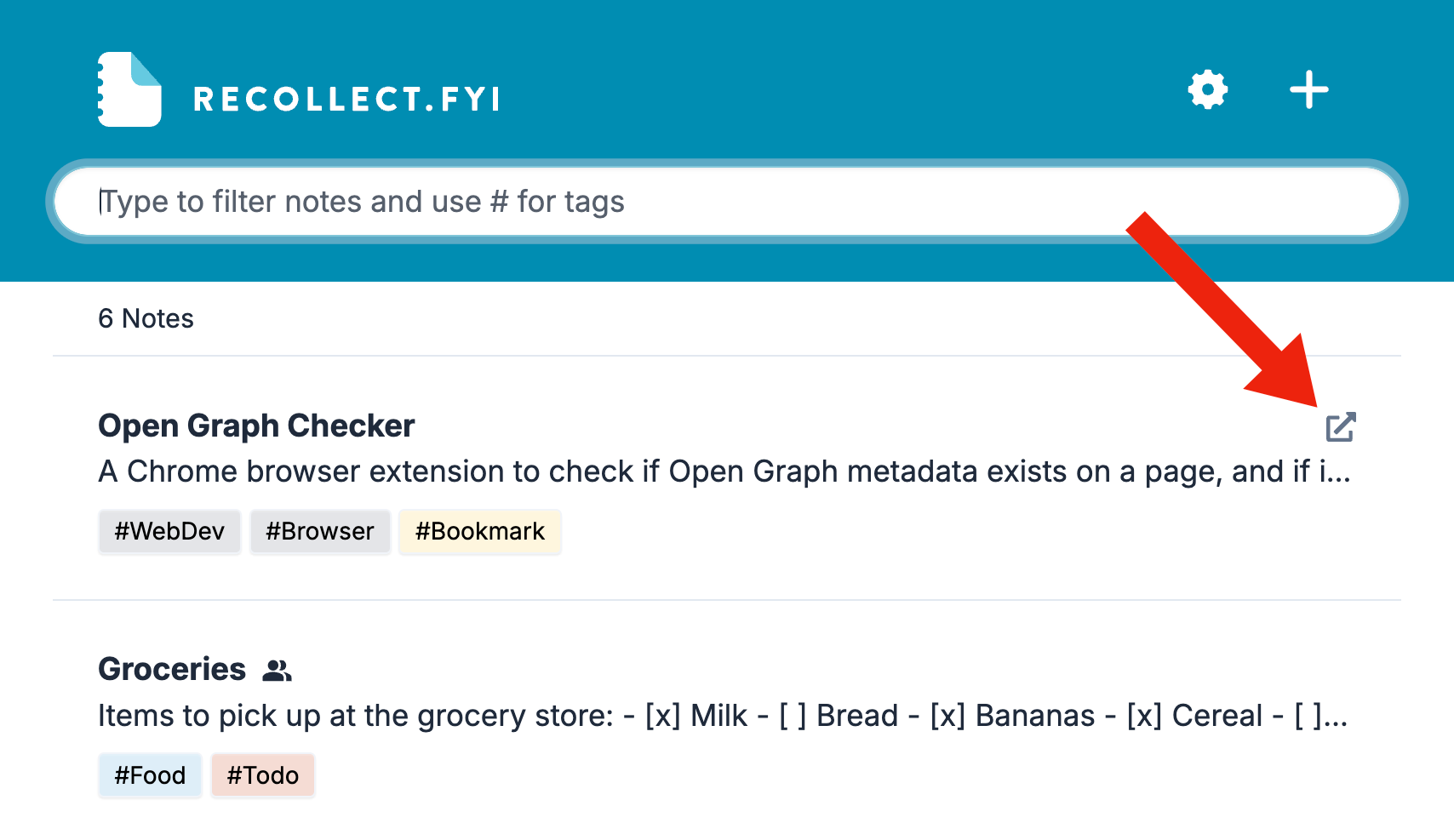
Screenshot of the Recollect note list with a red arrow pointing to the external link icon on the Open Graph Checker note.
A red arrow highlights the external link icon that appears in the top-right corner of a note preview tagged as a bookmark.

Click on the Gear icon and select Settings.
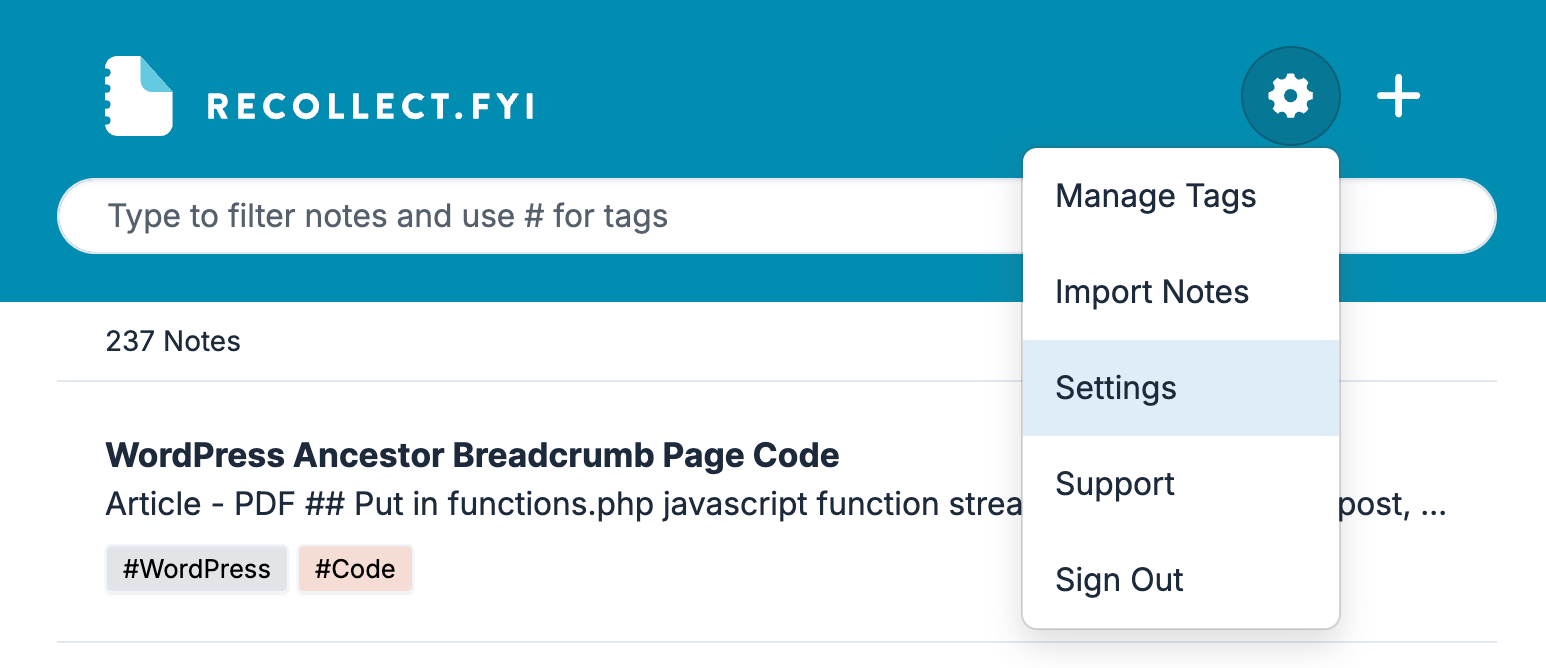
Screenshot of the Recollect app with the Gear icon menu open, showing Manage Tags, Import Notes, Settings highlighted, Support, and Sign Out.
Opening the Gear icon menu reveals the Settings option needed to reach your account controls.

Find the Bookmarks section in Preferences (the default view in Settings). Add or create one or more tags that will be associated with bookmarks. I recommend using Bookmarks, but it can be whatever you want.
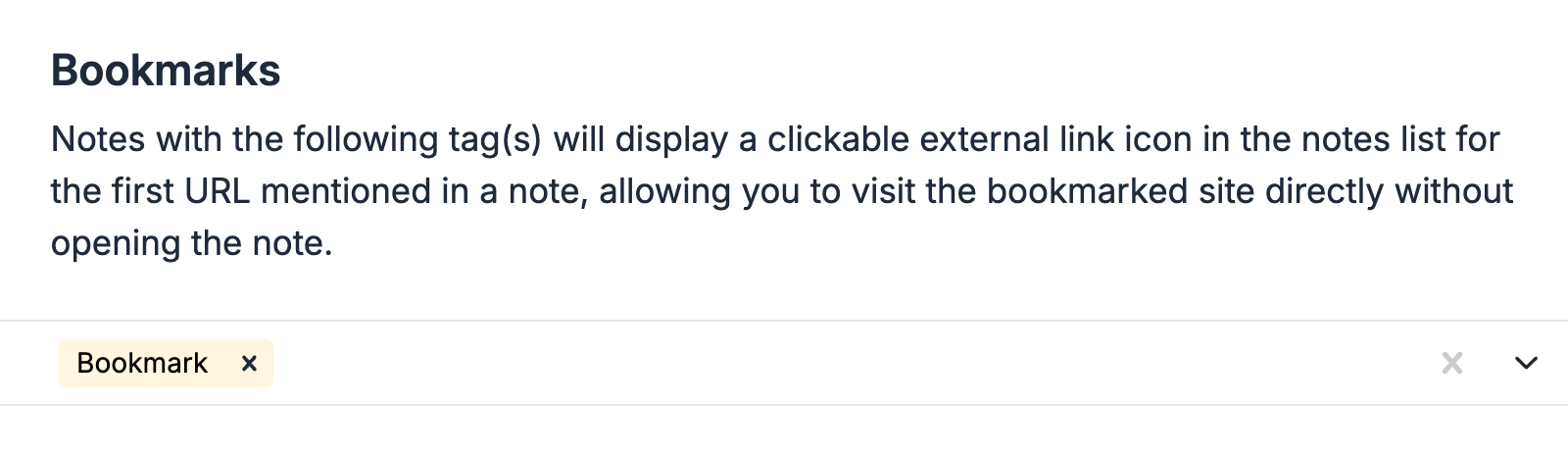
Screenshot of the Bookmarks setting, reading: “Notes with the following tag(s) will display a clickable external link icon in the notes list for the first URL mentioned in a note, allowing you to visit the bookmarked site directly without opening the note.” A “Bookmark” tag is entered below.
The Bookmarks section of Preferences, showing the explanatory text and a single tag named “Bookmark” added to associate notes with bookmarks.

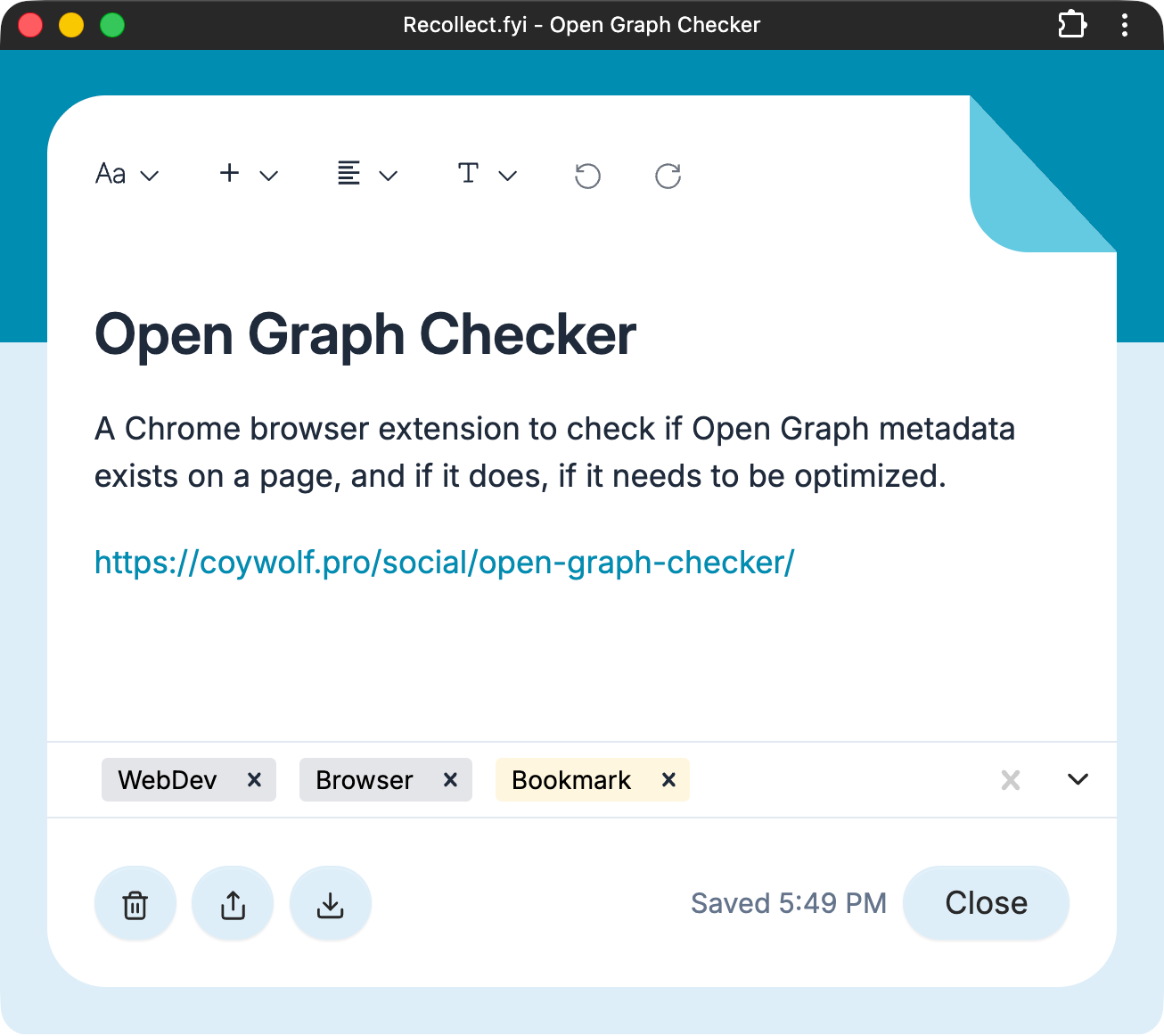
Add the tag(s) to a note.

Screenshot of a Recollect note titled “Open Graph Checker” with three tags below it: “WebDev,” “Browser,” and the highlighted “Bookmark” tag.
A Recollect note for the Open Graph Checker extension, tagged with WebDev, Browser, and Bookmark to associate it with bookmarks.

All notes with a tag associated with the Bookmarks setting will now display an external link icon in the note preview in the notes list view. The link is always the first URL found in the note.

To view all of your bookmarks, type the tag in the filter bar or click the tag on a note preview.
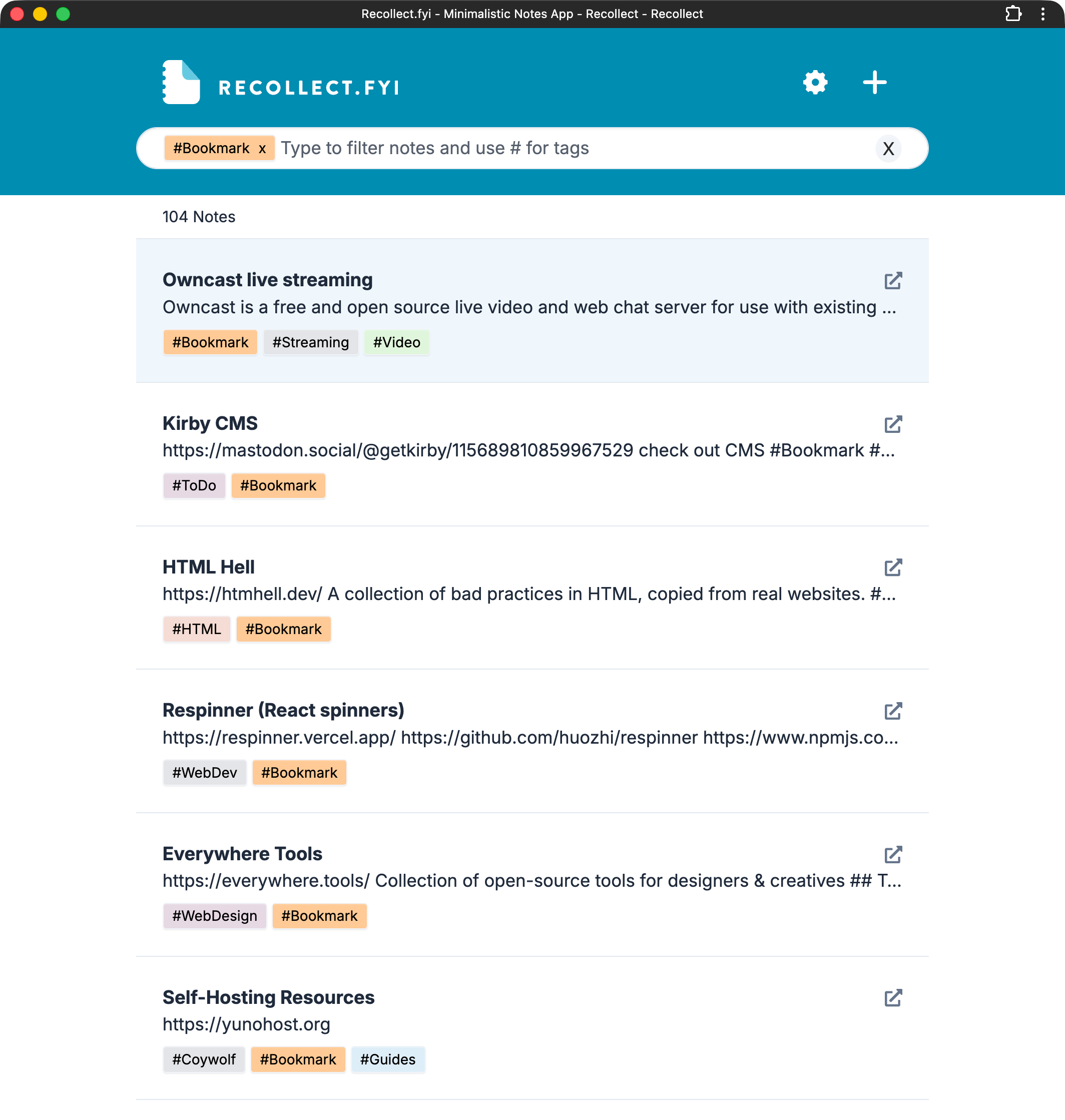
Screenshot of the Recollect notes list filtered by the #Bookmark tag, showing 104 notes each with an external link icon in the top-right corner.
The notes list filtered by the Bookmark tag, where each matching note shows an external link icon that opens the first URL in the note.

Save bookmarks with one click

You can also save any web page as a bookmark in one click using the browser extension or bookmarklet. See saving bookmarks with the browser extension.