Managing bookmarks
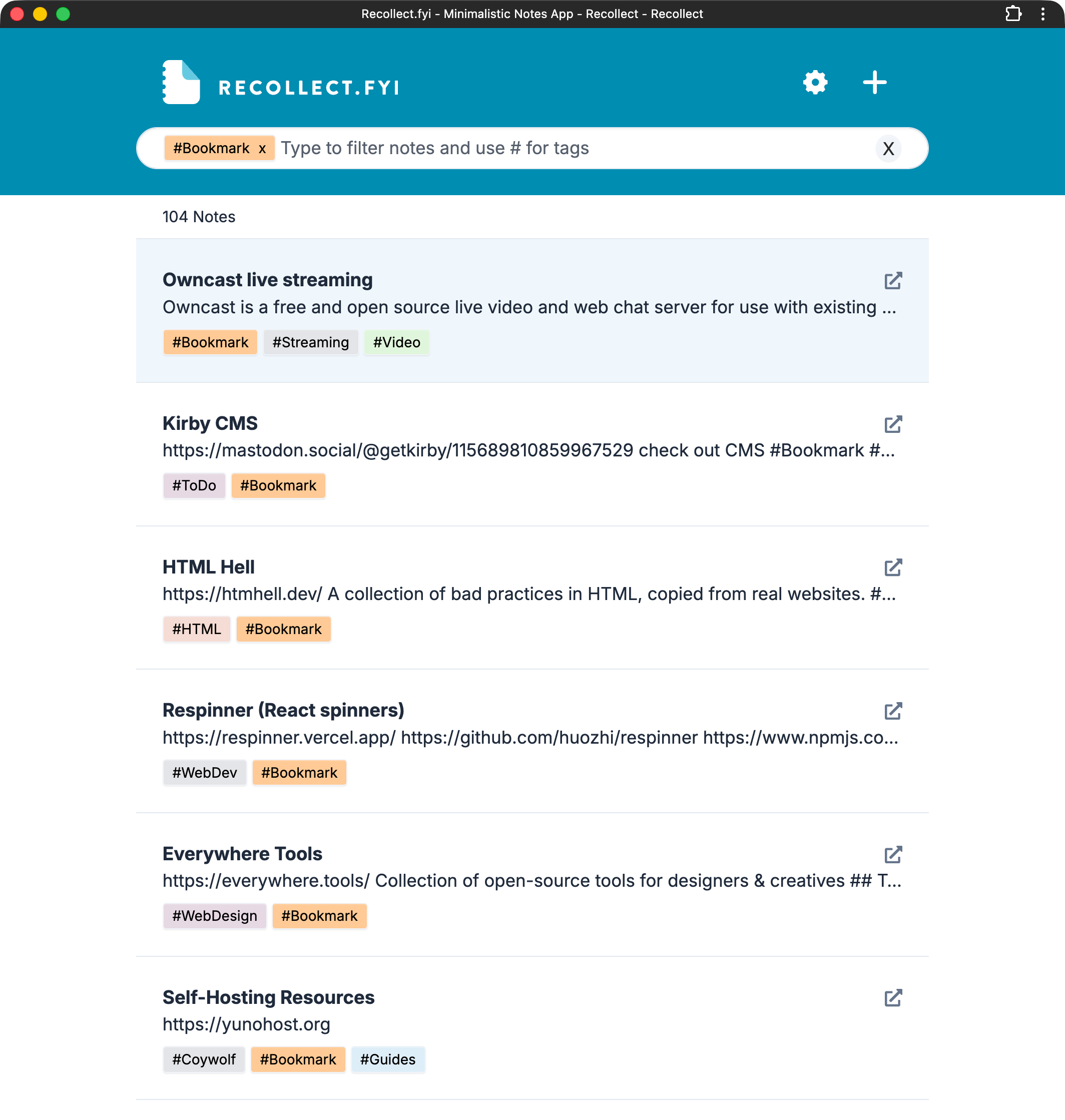
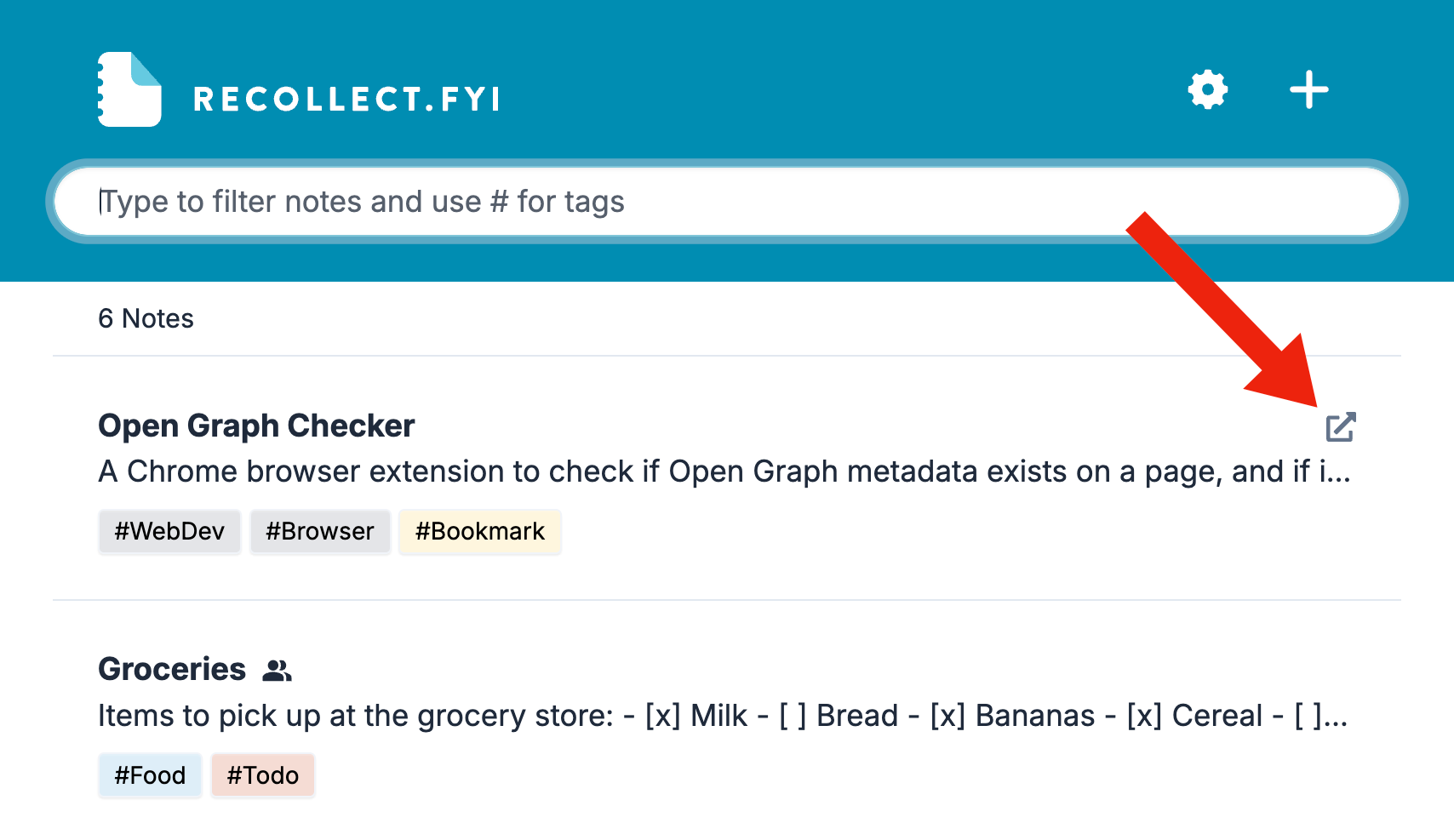
Notes can be used for bookmarks and display an external link icon on the note preview in the note list view.
How to display bookmark links
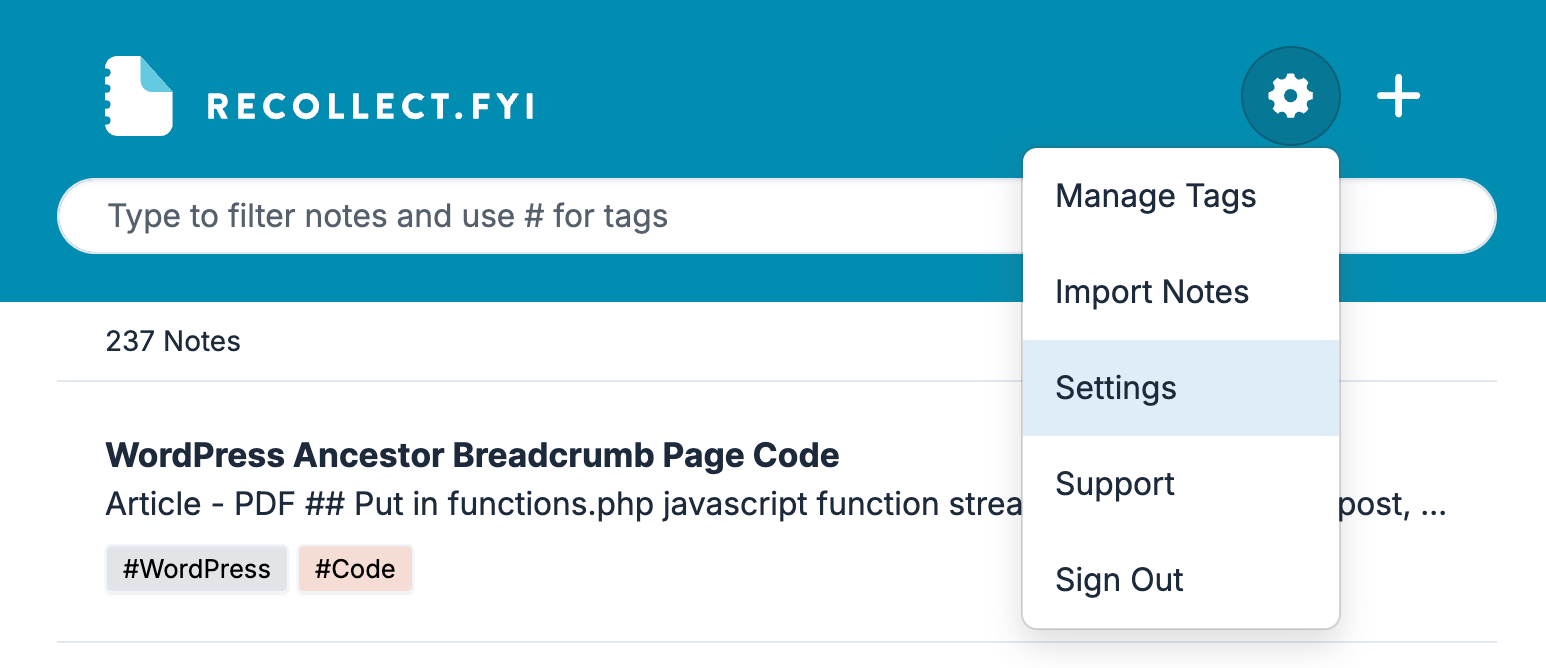
Click on the Gear icon and select Settings.
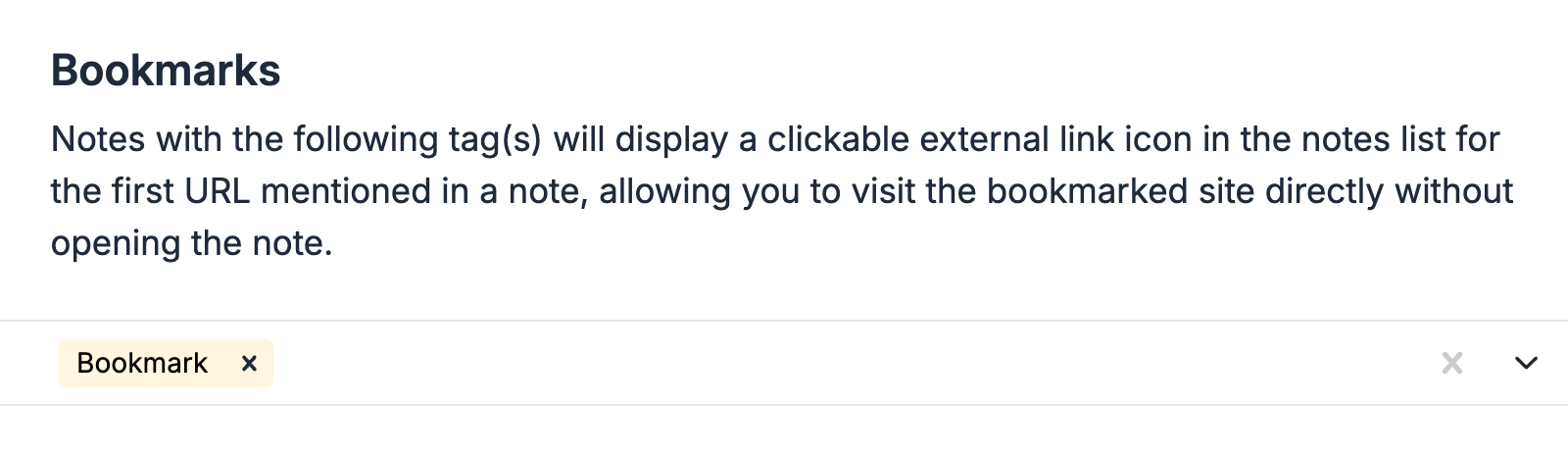
Find the Bookmarks section in Preferences (the default view in Settings). Add or create one or more tags that will be associated with bookmarks. I recommend using Bookmarks, but it can be whatever you want.
Add the tag(s) to a note.
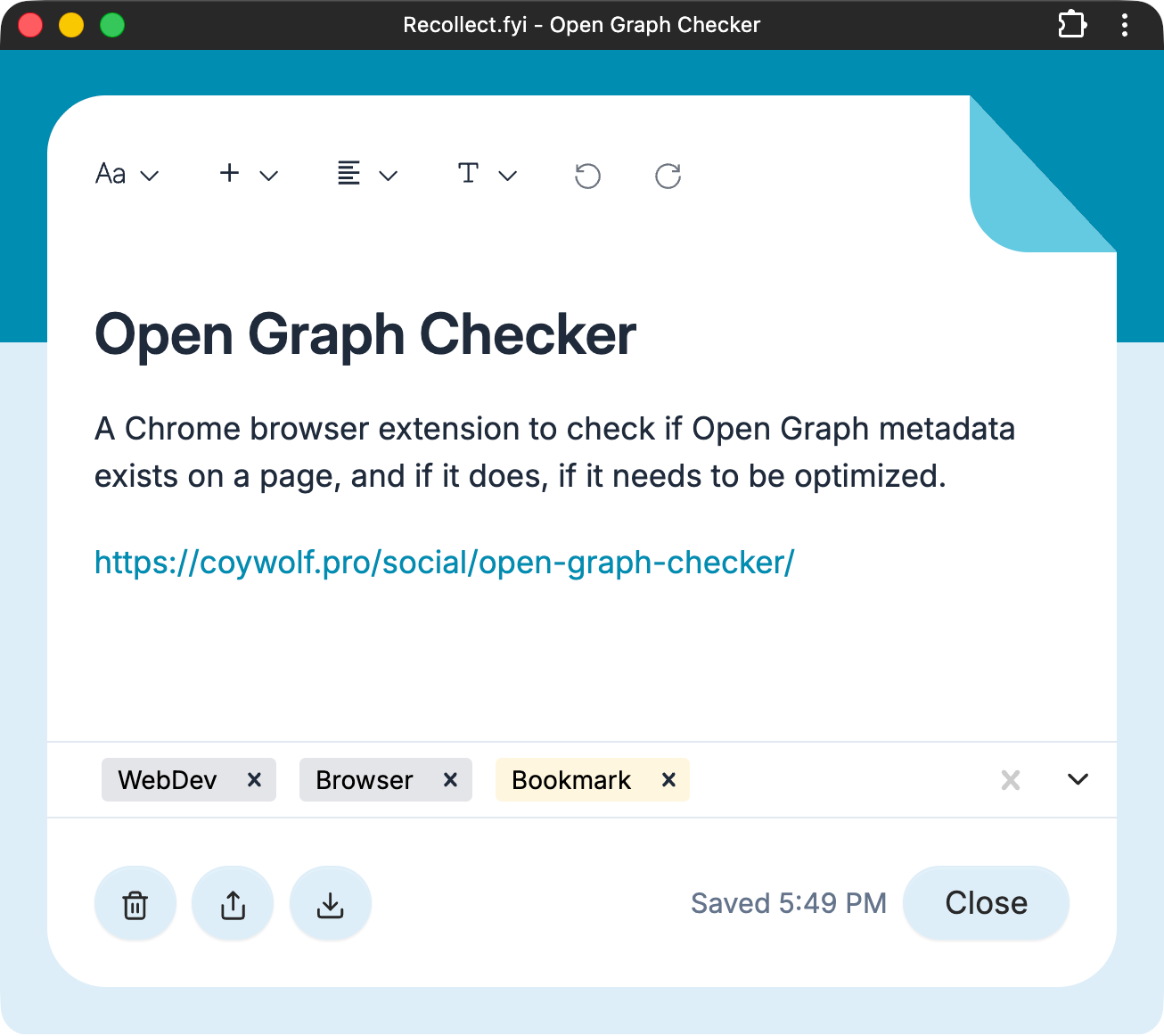
All notes with a tag associated with the Bookmarks setting will now display an external link icon in the note preview in the notes list view. The link is always the first URL found in the note.
To view all of your bookmarks, type the tag in the filter bar or click the tag on a note preview.