How to filter notes
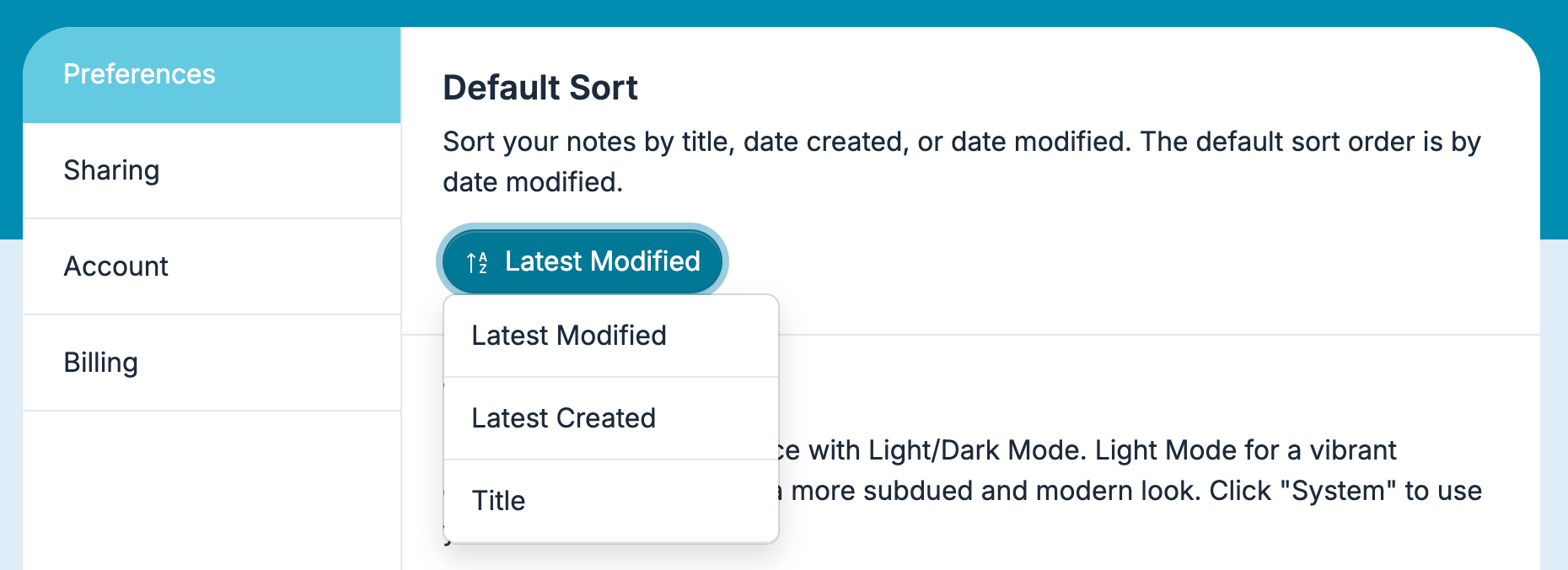
By default, notes are listed chronologically based on the date and time they were last modified. If you prefer to list notes by creation date or title, the default sort preference can be changed in Settings.
Scrolling the list view becomes cumbersome as you add more notes and need to recall them. Therefore, we made filtering notes quick and effortless. We recommend using tags extensively to get the most out of the notes filter. Tags act as a folder replacement, making filtering notes an even more effective way to find notes quickly.
Filtering notes with keywords
To begin, click the search bar or type the CMD + F keyboard shortcut to select it. Start typing the word related to the note you’re searching for. Each letter typed filters the list in real-time. Press the spacebar and type another word if the first word doesn’t reveal the note you want to recall.
Once you find the note, there are three methods to open it:
- Click on the note.
- Press the Return/Enter key if it’s the first result.
- Use the ↓ key to select the note in the list and then press the Return/Enter key.
Filtering notes with tags
There are two ways to filter notes with tags. The first method is to type # and then the tag name. As you type, the tag list shortens only to display the tags that match your text.
The other method is to click on a tag in the notes list.