How to install Recollect on your devices

Recollect is a progressive web app (PWA) that functions best as a standalone app on your computer, tablet, and smartphone. It can be installed on macOS, iOS, iPadOS, Windows, Android, and Linux devices.

Google Chrome

The Chrome browser displays an “Install” icon for PWAs. Navigate to app.recollect.fyi, and click the “Install” icon and then the Install button. That’s it! It’s now installed, the Recollect app should open, and the icon should appear on your Dock.
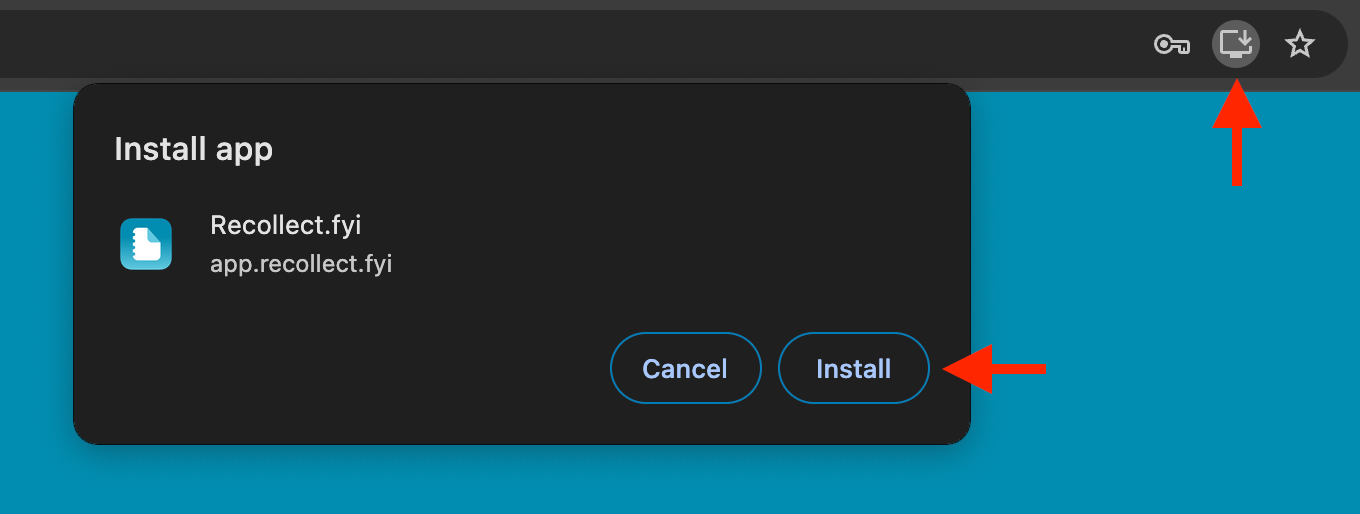
Chrome's “Install app” dialog for Recollect.fyi, with red arrows pointing to the address bar install icon and the Install button.
Chrome shows an “Install app” dialog for Recollect; click the install icon in the address bar, then the Install button to add the app.

Safari on macOS

Safari doesn’t display the “Install” icon like Chrome does. Instead, it treats all PWAs and web apps the same. To add Recollect from Safari, click the “Share” icon and then Add to Dock. Recollect will open, and the icon will appear on the Dock.
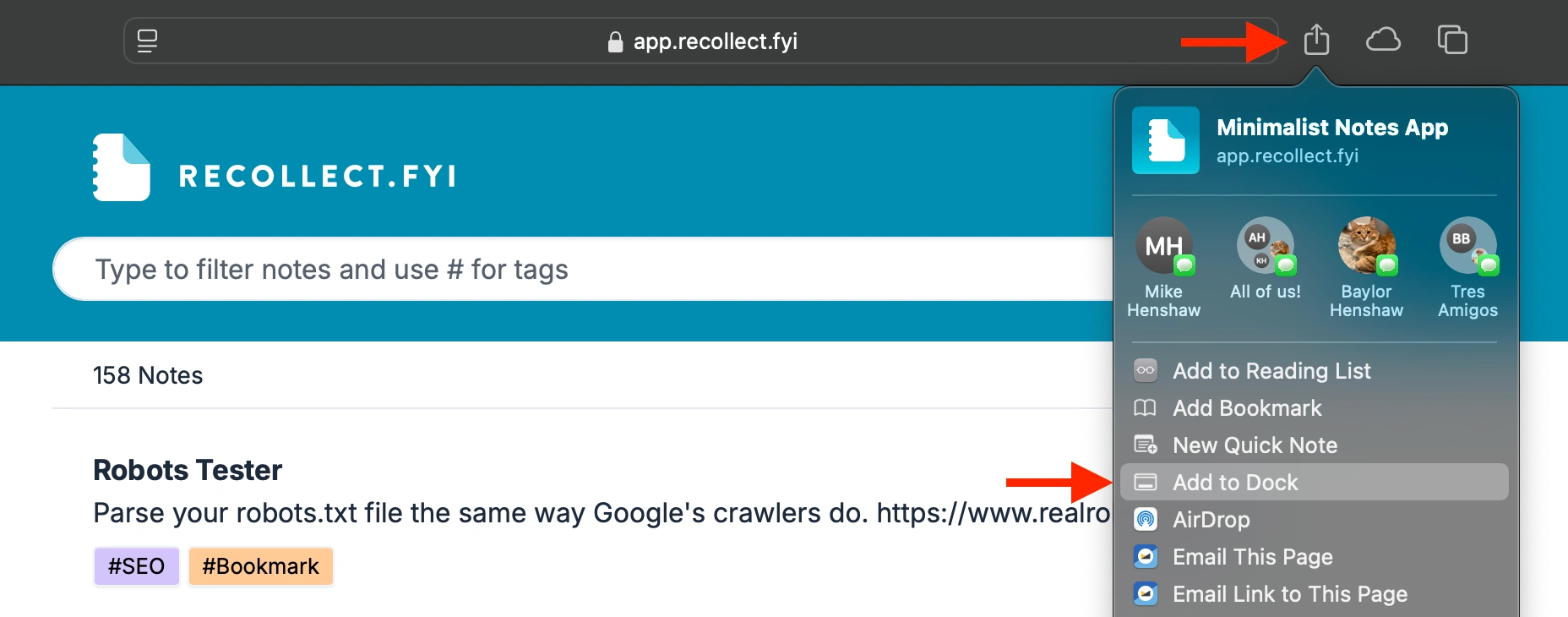
Screenshot of Safari's Share menu open on app.recollect.fyi, with red arrows pointing to the Share icon in the toolbar and the highlighted “Add to Dock” option.
In Safari on macOS, open the Share menu and choose “Add to Dock” to install Recollect as a standalone app.

Edge on Microsoft Windows

The Edge browser on Microsoft Windows displays an “Install” icon for PWAs. Navigate to app.recollect.fyi, and click the “Install” icon and then the Install button.
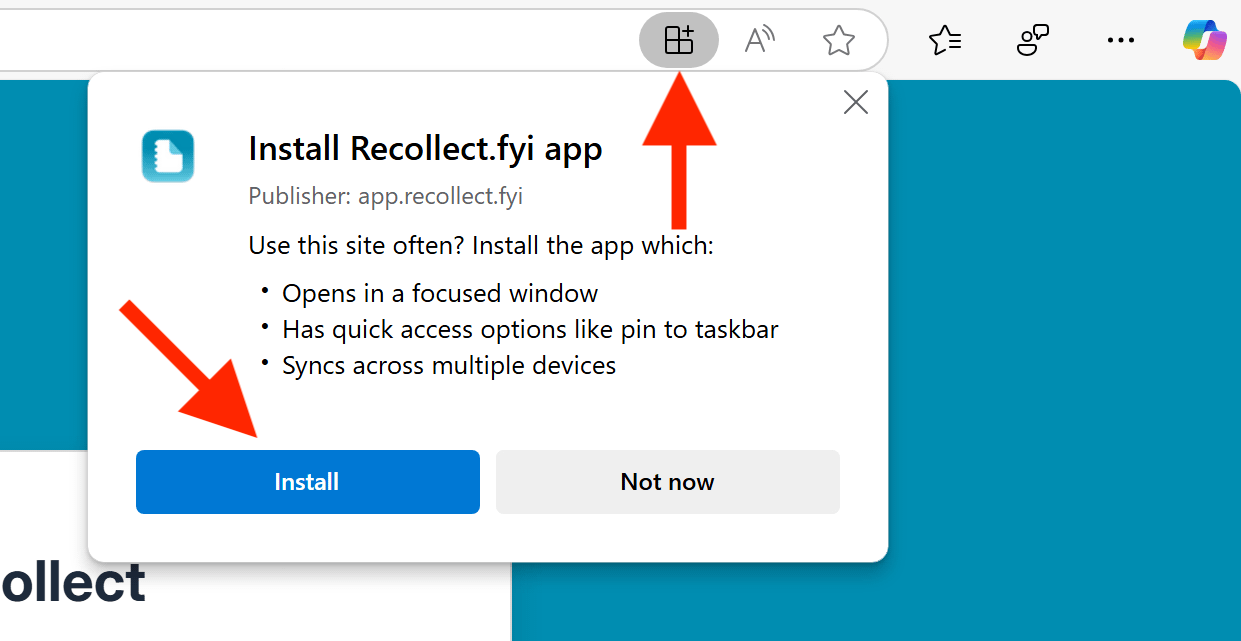
Screenshot of Microsoft Edge showing the “Install Recollect.fyi app” dialog, with red arrows pointing to the Install icon in the toolbar and the blue Install button.
Edge on Windows shows an install prompt for Recollect; the arrows highlight the toolbar install icon and the Install button that adds the app.

Once it’s installed, select the shortcut locations you’ll use to launch Recollect in Windows.
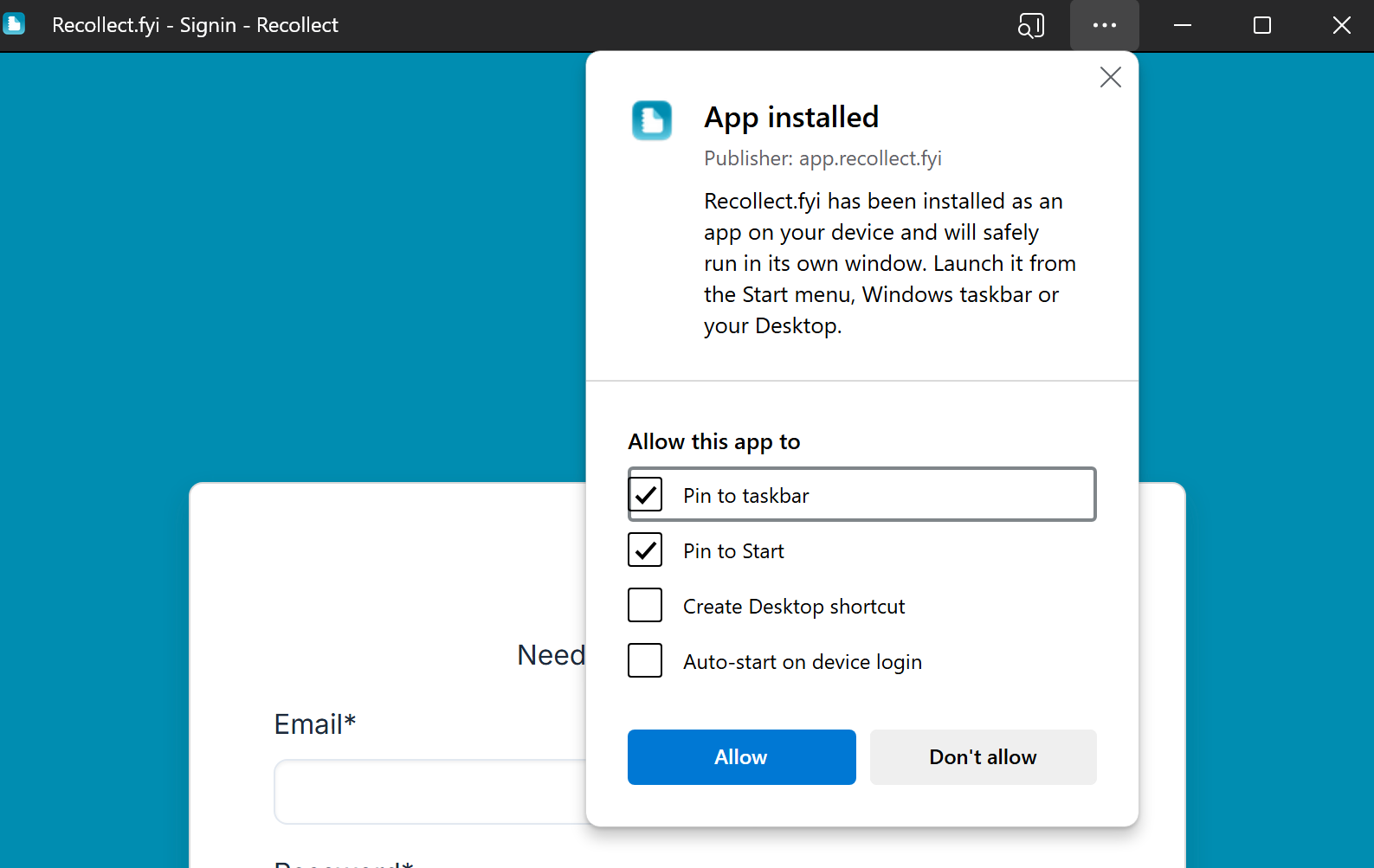
Microsoft Edge dialog reads “App installed” for Recollect.fyi with shortcut options: Pin to taskbar and Pin to Start are checked, while Create Desktop shortcut and Auto-start on device login are unchecked, above Allow and Don't allow buttons.
After installing Recollect in Edge, this dialog lets you choose where its shortcuts appear, with Pin to taskbar and Pin to Start selected by default.

Safari on iOS and iPadOS

On iPhones and iPads, tap the meatballs (more) menu in Safari.
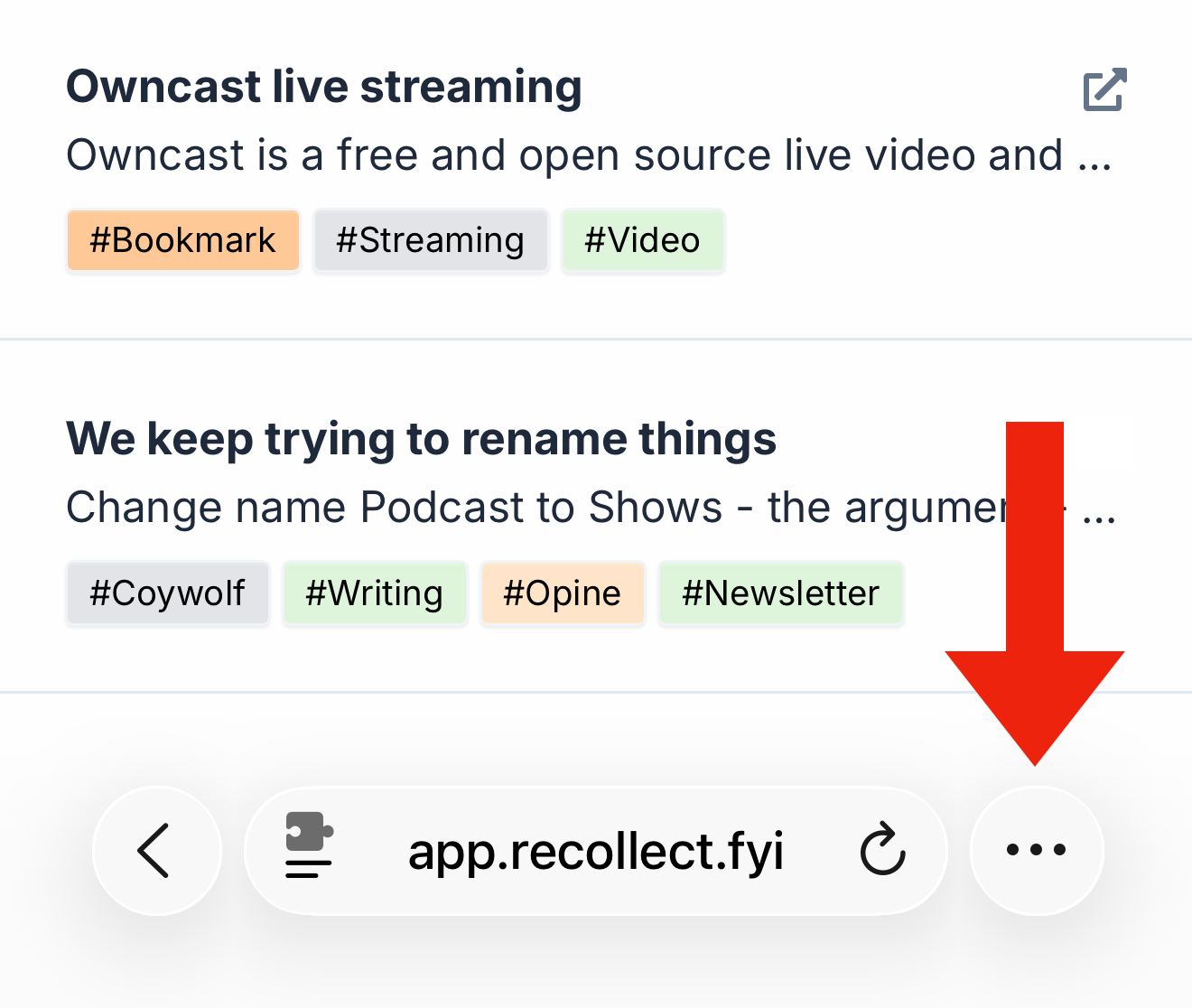
Screenshot of the Safari browser bar on iOS with a large red arrow pointing down to the meatballs (more) menu, three dots inside a circle at the bottom right.
In Safari on iPhone and iPad, a red arrow points to the meatballs (more) menu button used to reach the Share option.

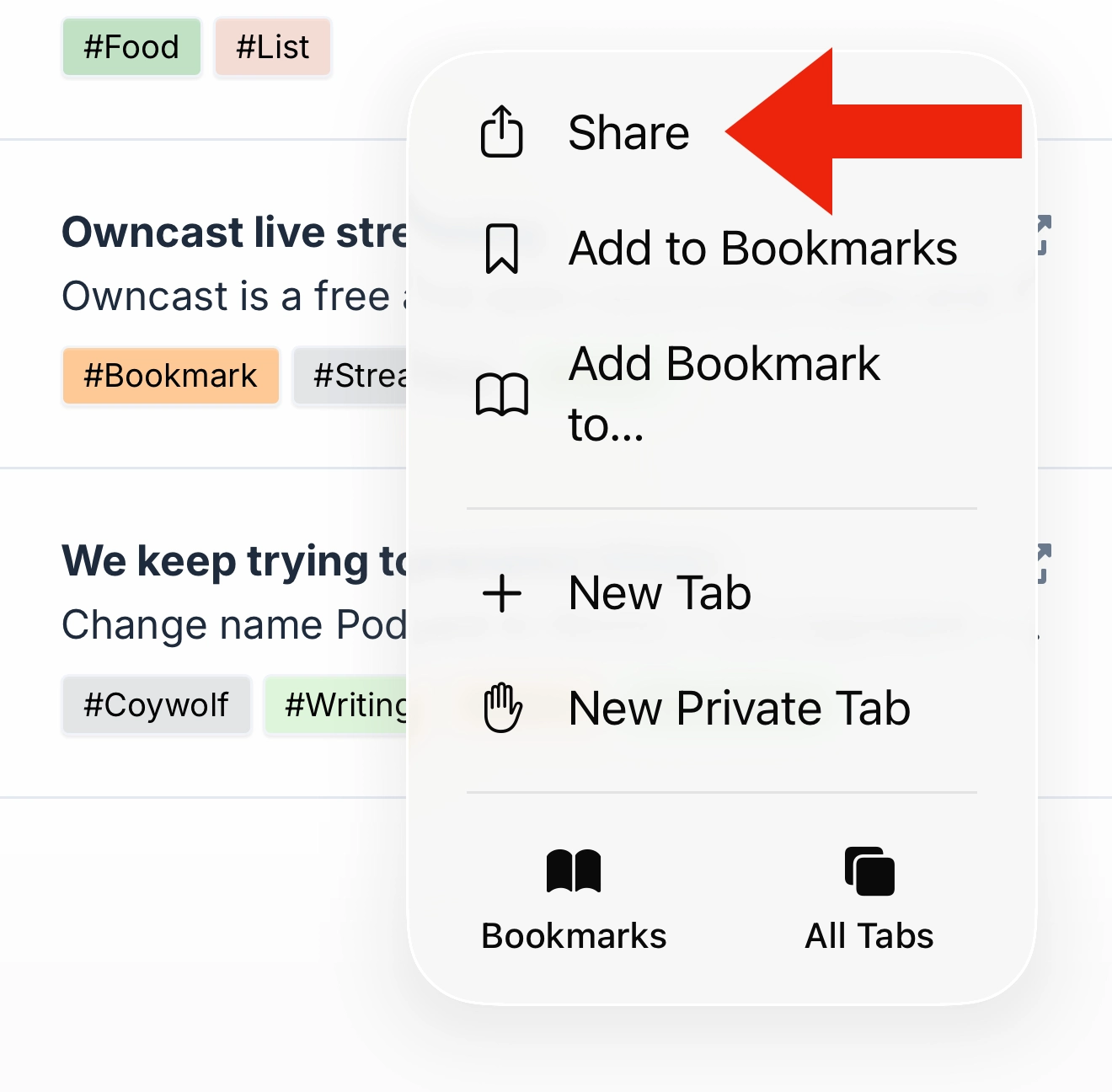
Tap the Share button.

Safari menu with a red arrow pointing to the Share option at the top, above Add to Bookmarks and Add Bookmark to.
In Safari on iPhone and iPad, a red arrow points to the Share option, which opens the sheet containing Add to Home Screen.

Swipe the sheet up to reveal the Add to Home Screen option.
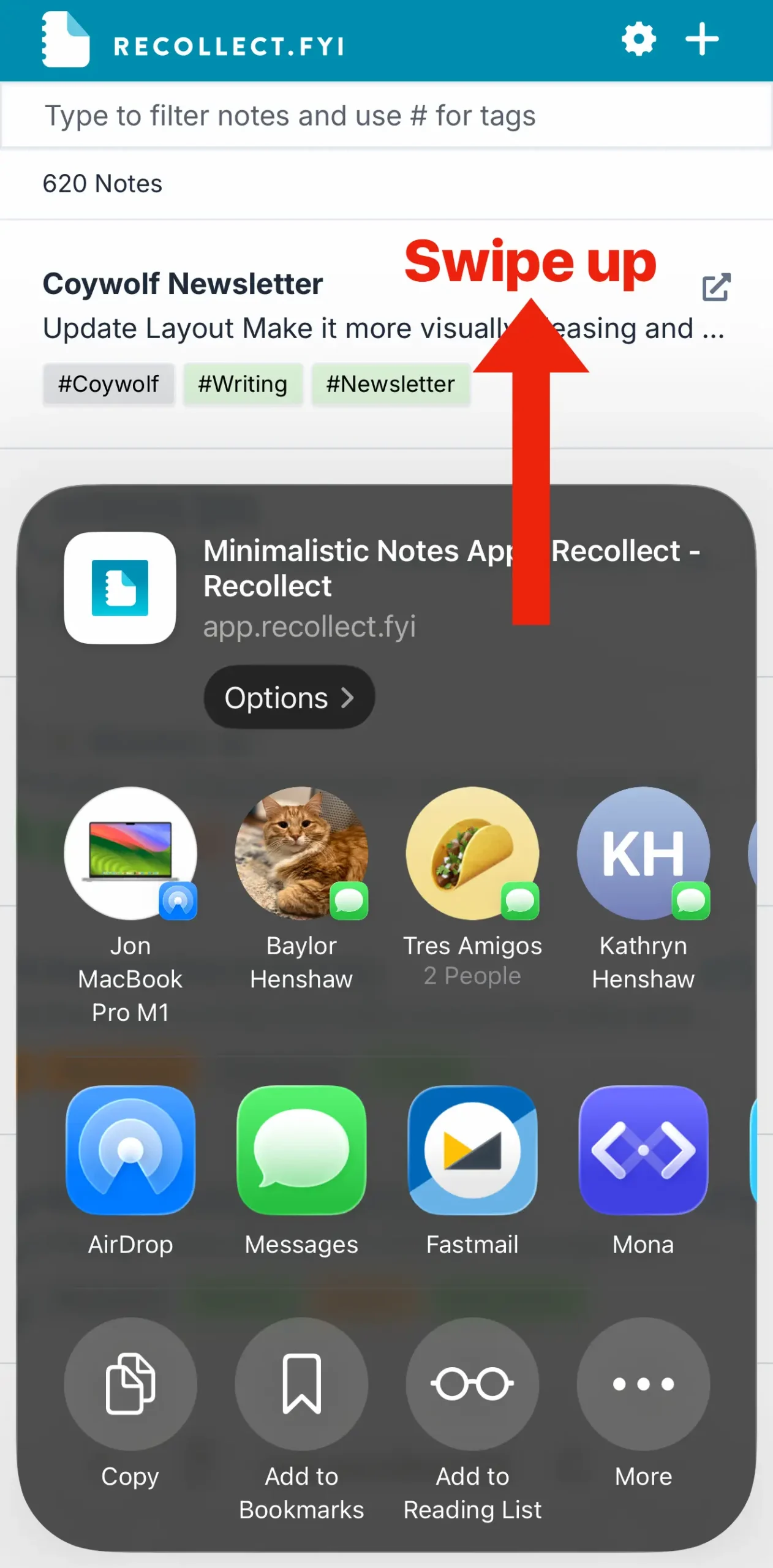
Screenshot of an iOS Share sheet over the Recollect app, with a red arrow and bold red text reading “Swipe up.”
The red arrow and label indicate the upward swipe on the Share sheet that reveals more options, including Add to Home Screen.

Tap the Add to Home Screen option at the bottom of the sheet.
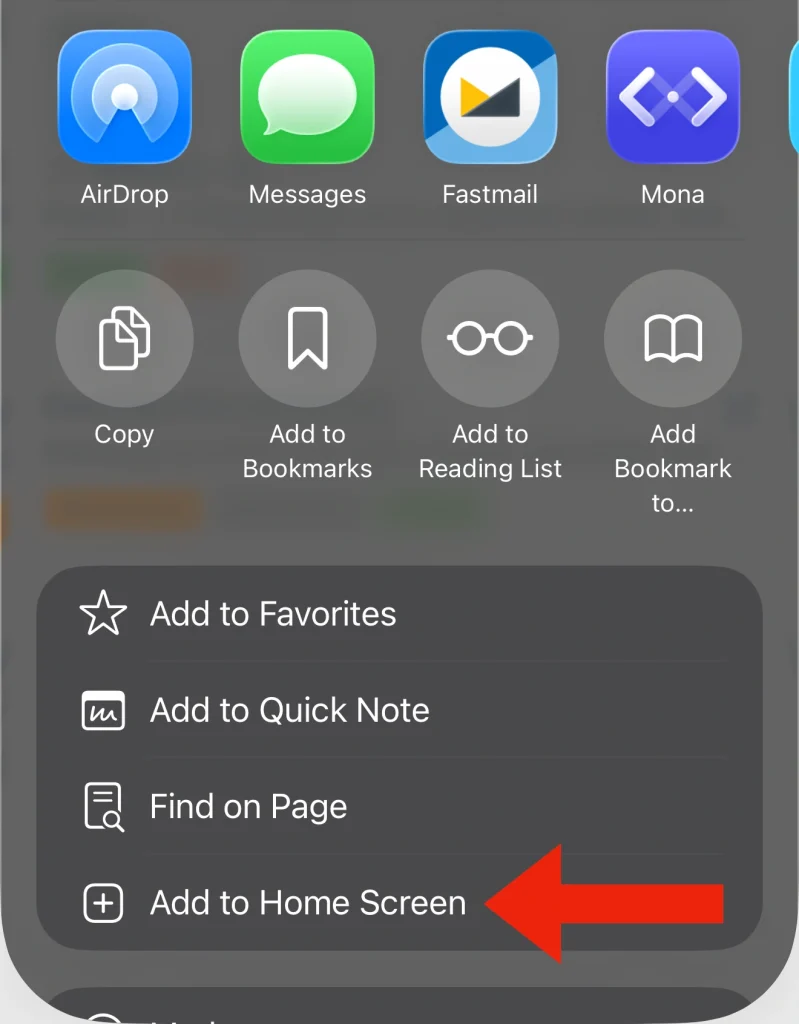
A red arrow points to the “Add to Home Screen” option near the bottom of Safari’s Share sheet.
Tapping “Add to Home Screen” in Safari’s Share sheet is the step that places the Recollect app icon on your iPhone or iPad home screen.

Ensure Open as Web App is toggled on, then click the Add button. The Recollect app icon will appear on the home screen, and you can now use it as a standalone app. Note: You will need to sign back in when you first open it.
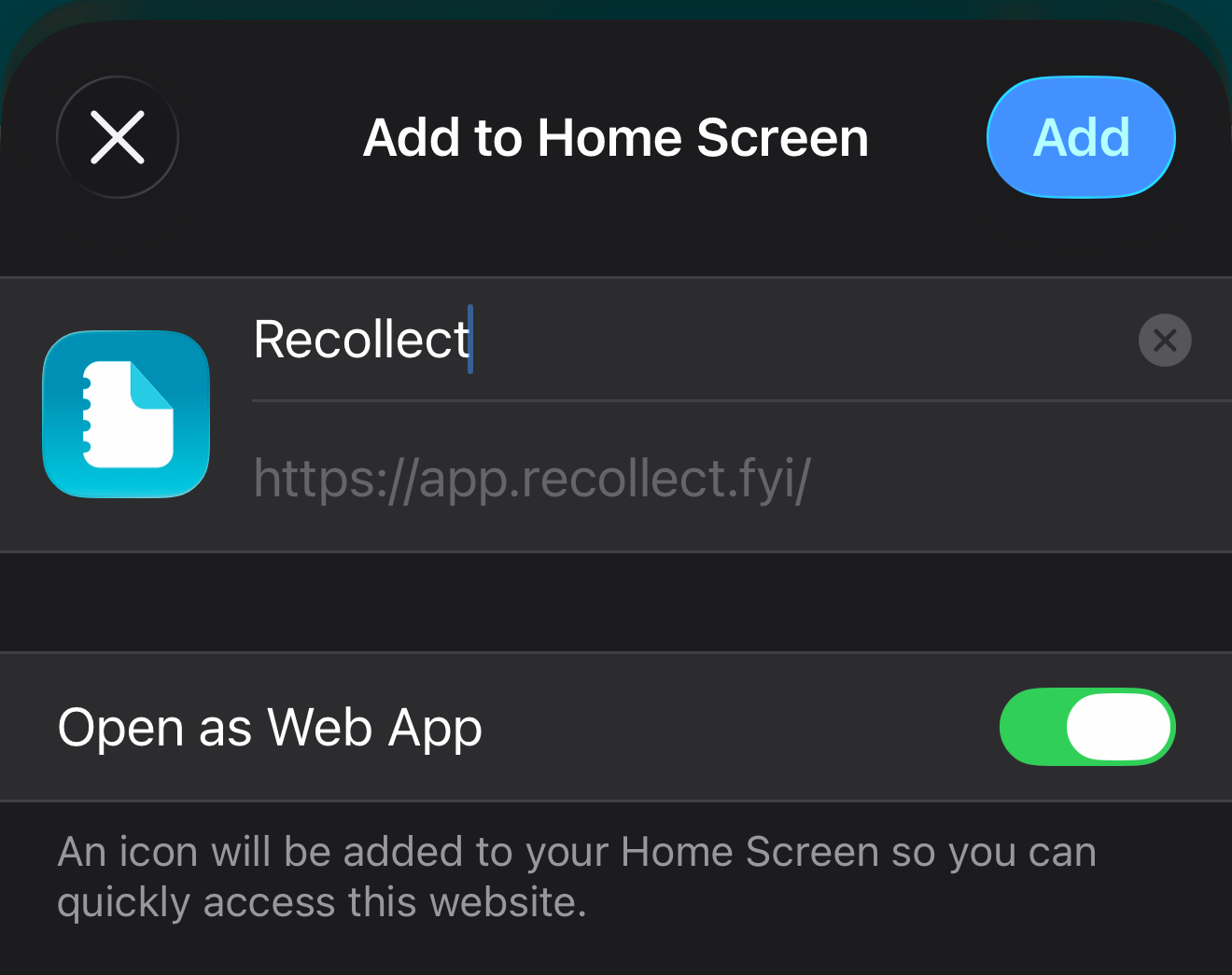
Screenshot of the iOS “Add to Home Screen” dialog showing the name field set to “Recollect,” the URL “https://app.recollect.fyi/,” the “Open as Web App” toggle switched on, and a blue “Add” button.
Safari's Add to Home Screen dialog with the name confirmed as Recollect, Open as Web App enabled, and the Add button ready to tap.

Last updated on