How to create notes via email
Each Recollect account gets a unique email address that can be used to create notes from email messages. The feature is useful for when you want to turn an email message into a note or use the native share functionality on a mobile device like an iPhone.
Steps to create notes via email
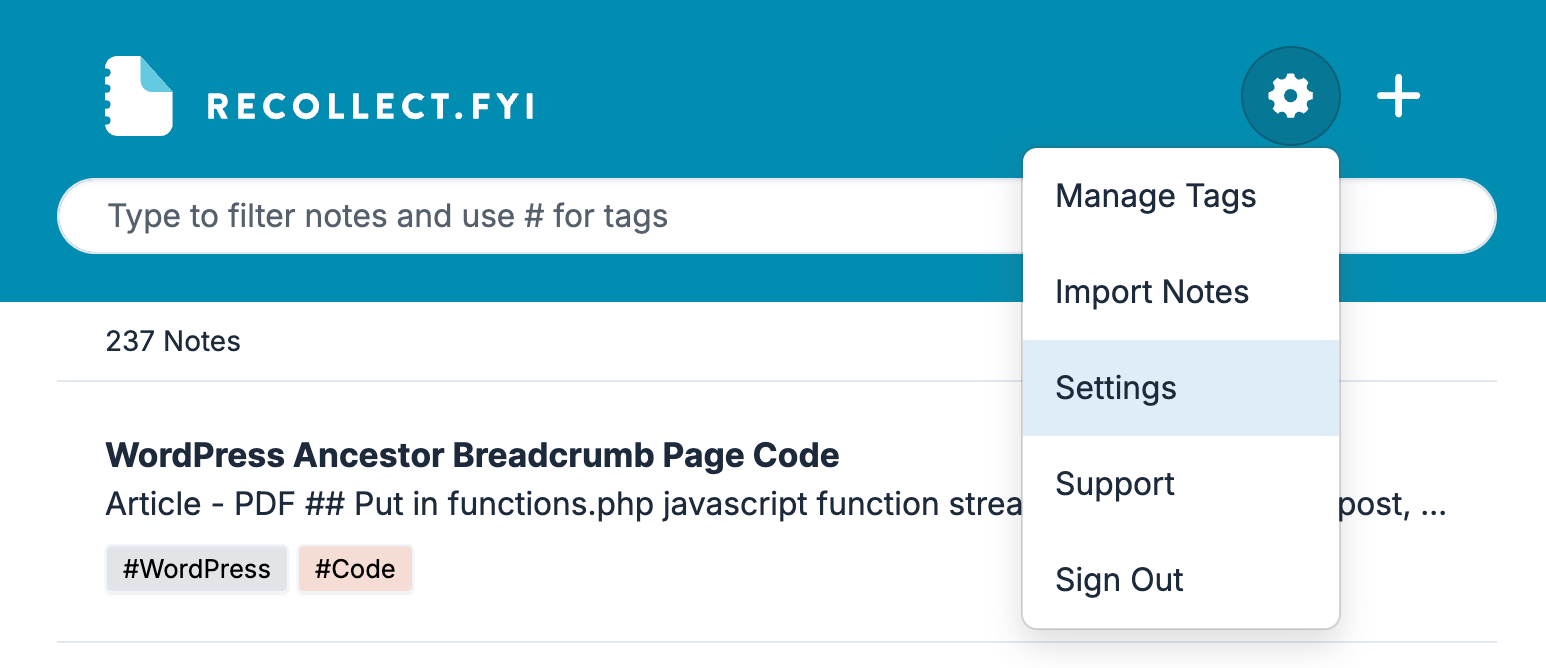
Click on the Gear icon and select Settings.
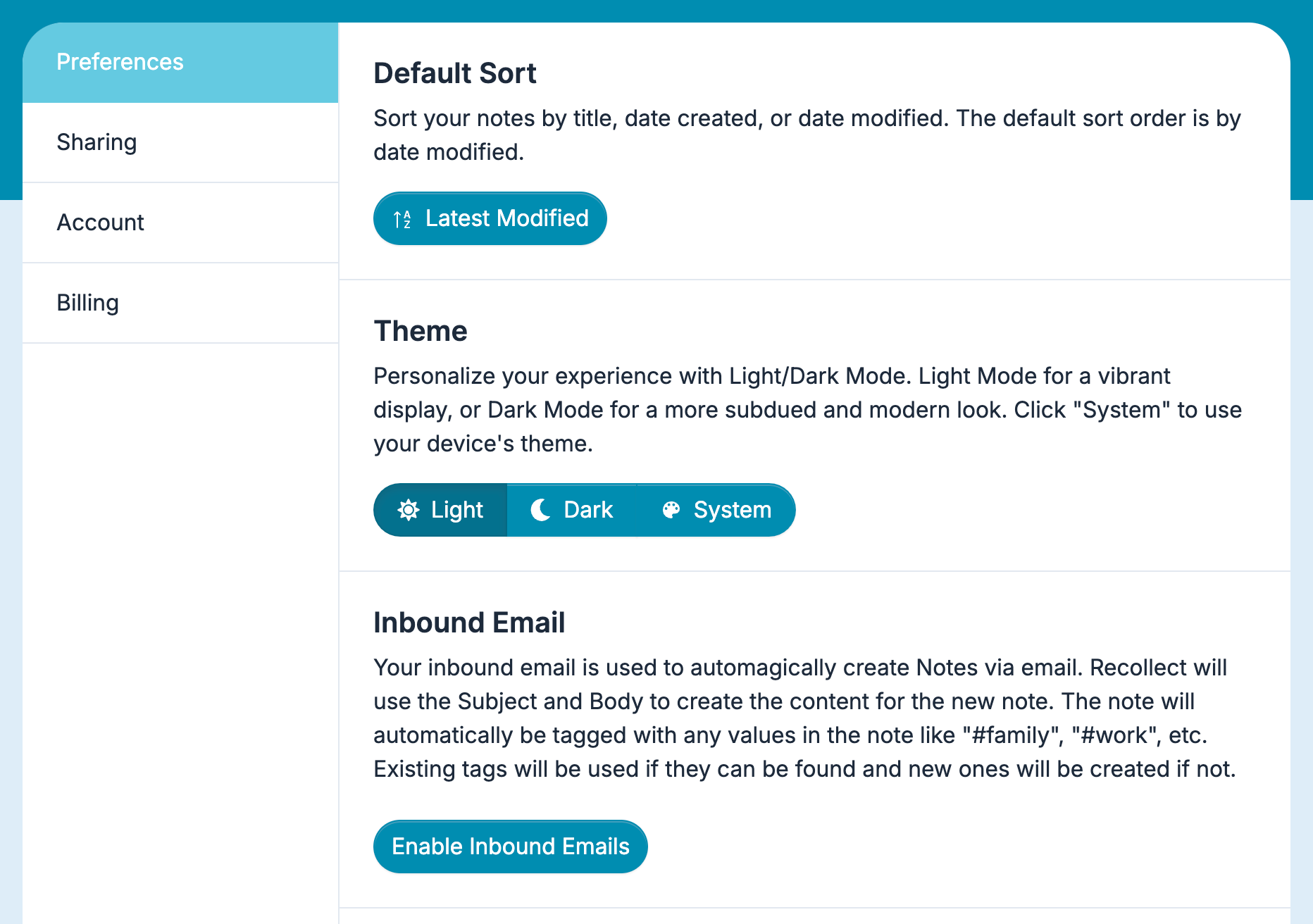
In Settings the default initial view is Preferences. scroll down to the bottom, and then click the Enable Inbound Emails button.
Copy the unique email address and save it in your contact manager.
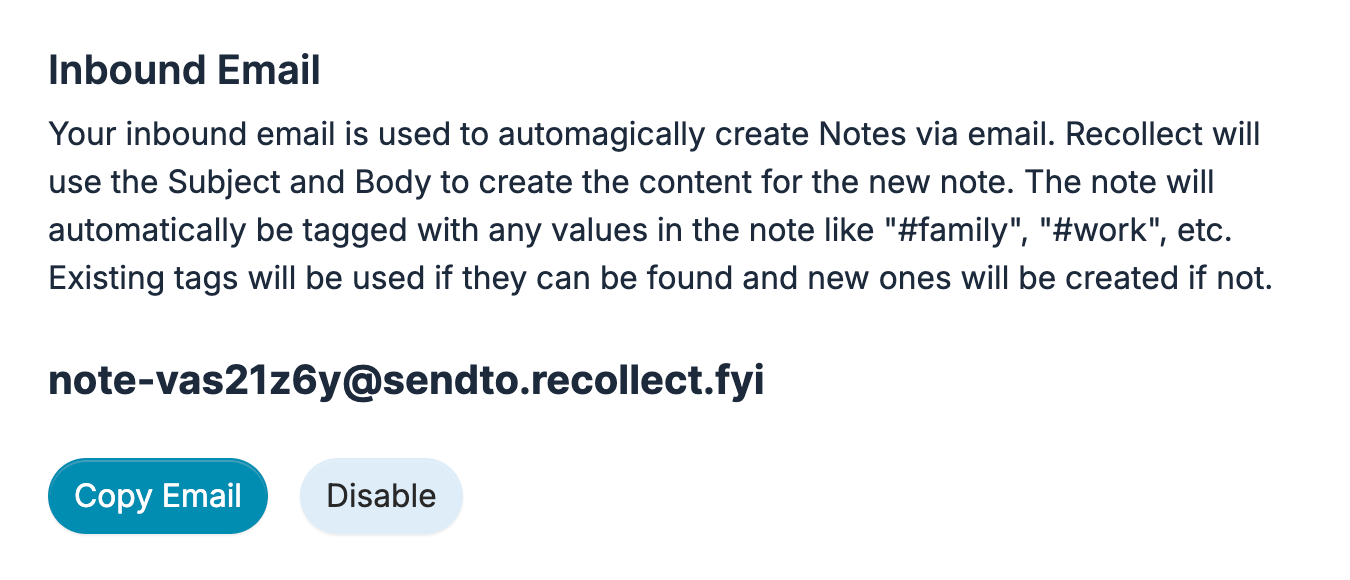
⚠️ Keep the email address private because anyone who knows about it can use it to create notes in your account. If the email address ever becomes compromised or you no longer want to use it, click the Disable button. If you want to use the feature again, click Enable Inbound Emails and Recollect will create a new unique email address.
Creating notes via email
The subject line is used for the note title and the message body fills in the rest of the note. Additionally, all words prepended with a hashtag (e.g., #ToDo, #Inspiration, etc.) are used as tags for the note. If a tag doesn’t exist, Recollect will create it.
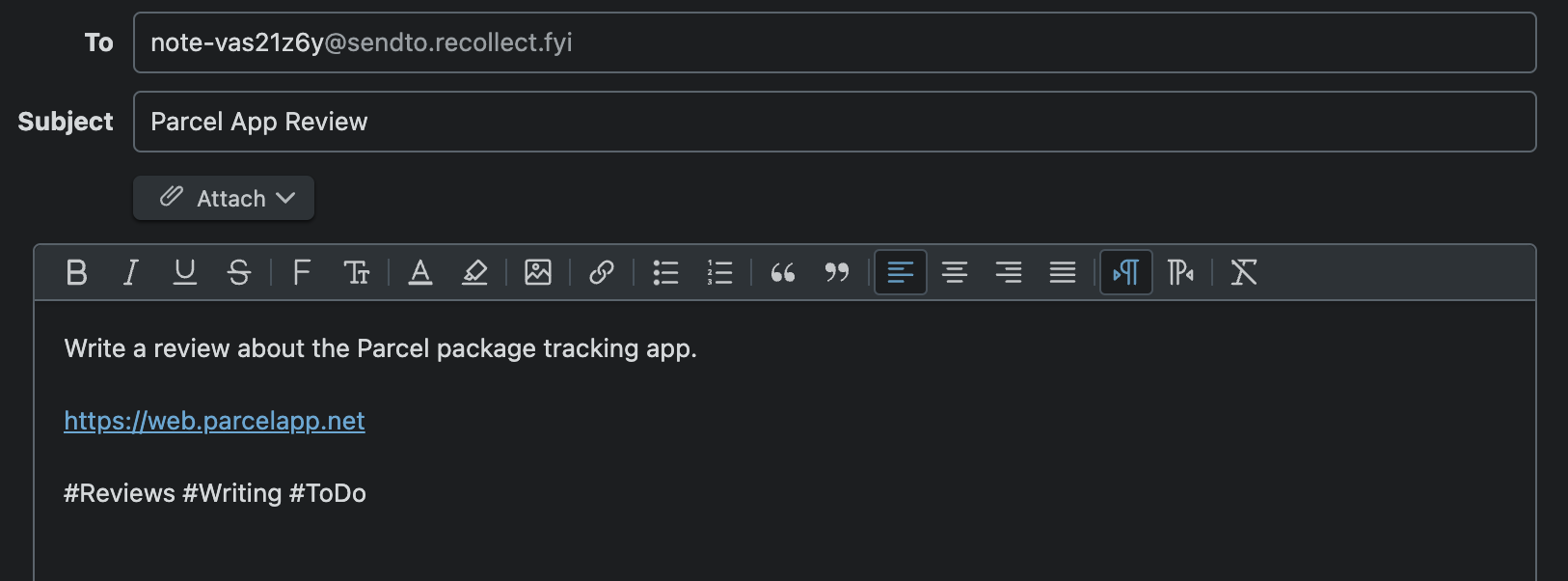
Shortly after the email is sent, Recollect will convert it into a note.

Note: File attachments and images currently aren’t supported and will be excluded from the note.