How to create notes via email

Each Recollect account gets a unique email address that can be used to create notes from email messages. The feature is useful for when you want to turn an email message into a note or use the native share functionality on a mobile device like an iPhone.

Steps to create notes via email

Click on the Gear icon and select Settings.
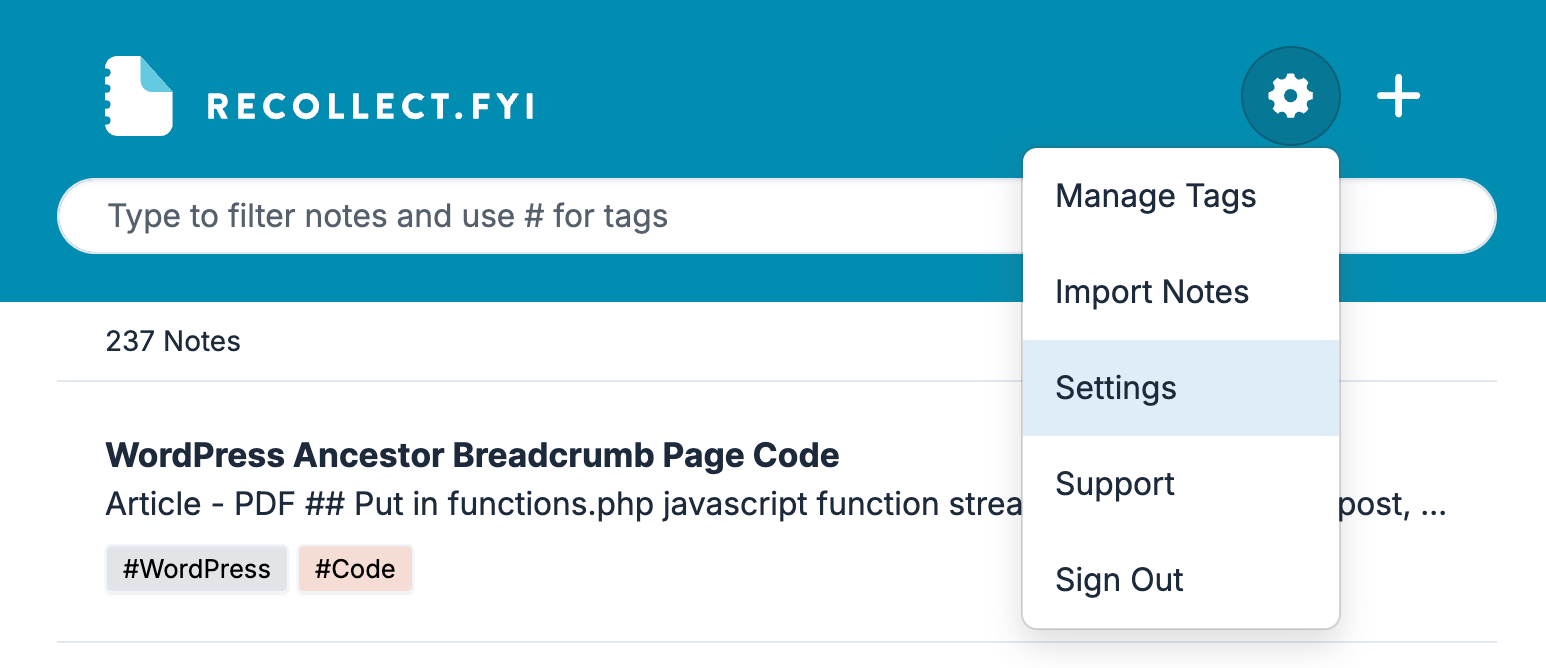
Screenshot of the Recollect app with the Gear icon menu open, showing Manage Tags, Import Notes, Settings highlighted, Support, and Sign Out.
Opening the Gear icon menu reveals the Settings option needed to reach your account controls.

In Settings the default initial view is Preferences. scroll down to the bottom, and then click the Enable Inbound Emails button.
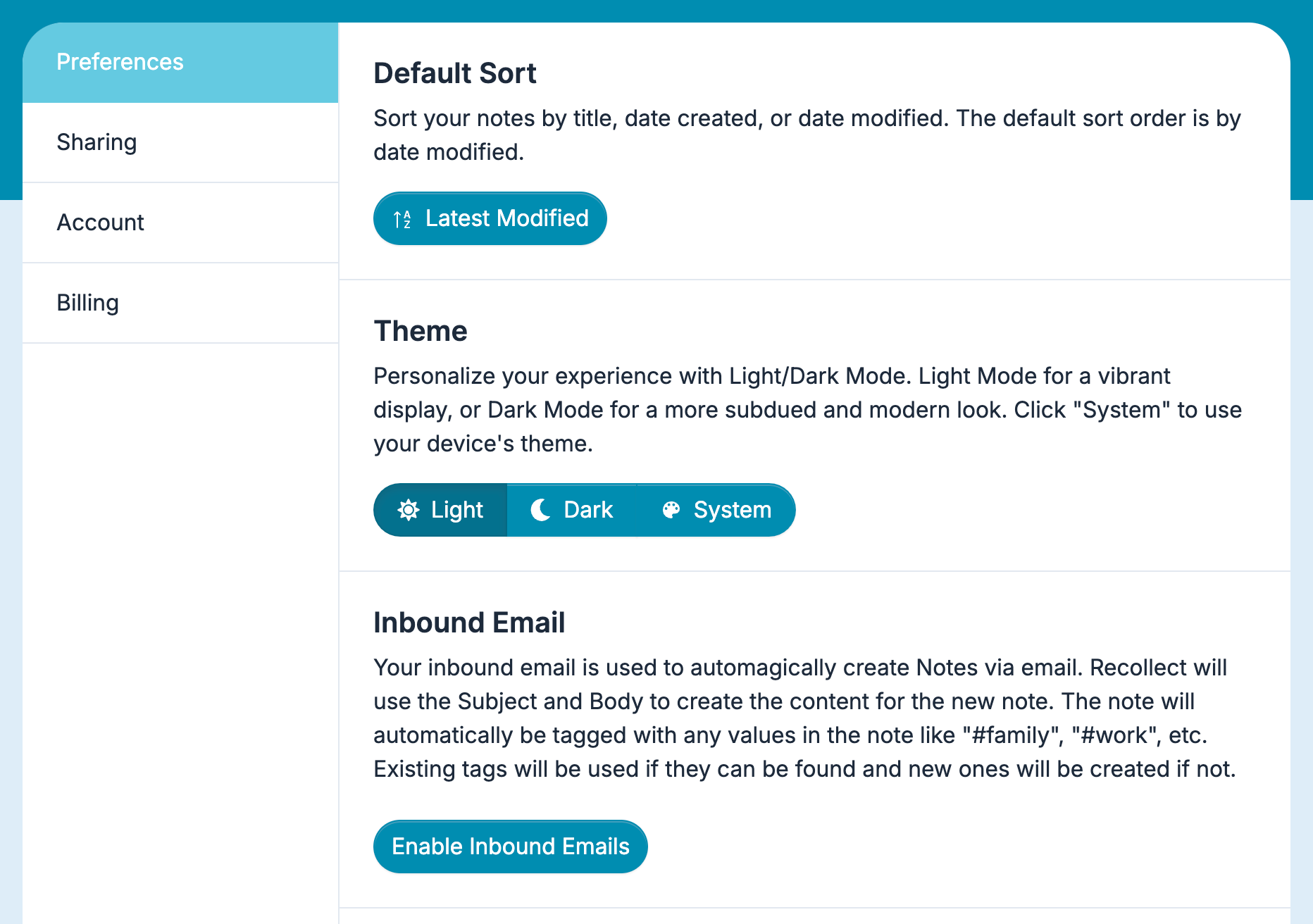
Screenshot of the Recollect Preferences settings, with the Enable Inbound Emails button at the bottom of the panel.
The Preferences tab in Recollect Settings, where the Enable Inbound Emails button sits below the Default Sort, Theme, and Inbound Email sections.

Copy the unique email address and save it in your contact manager.
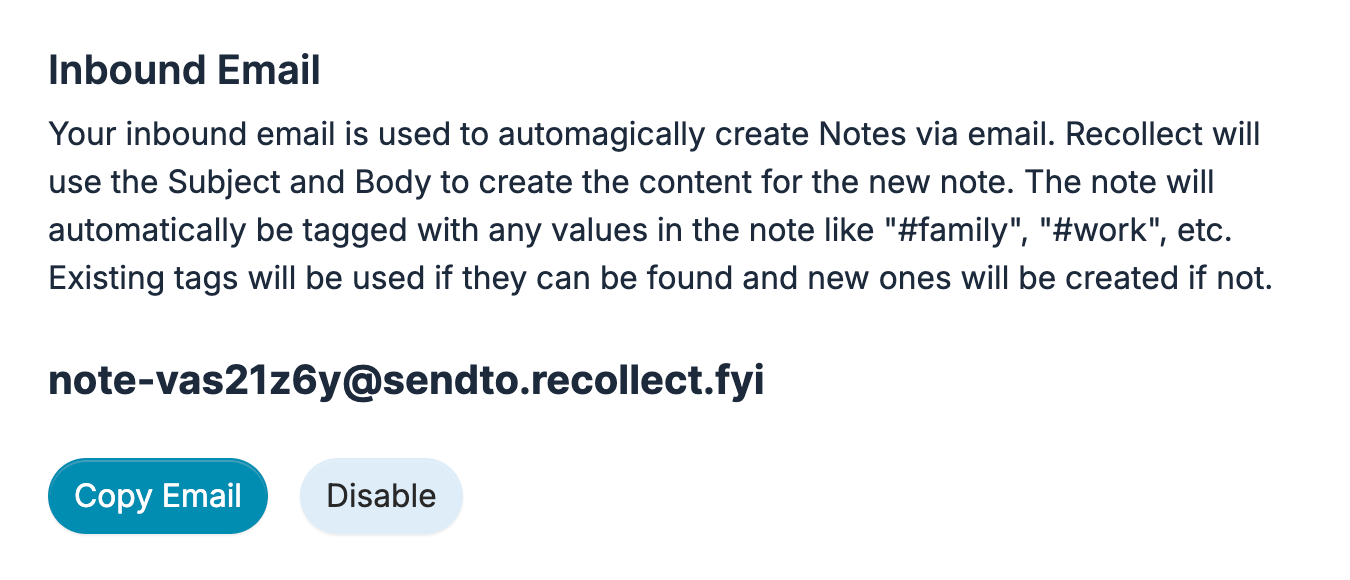
Screenshot of the Inbound Email settings showing the address note-vas21z6y@sendto.recollect.fyi with Copy Email and Disable buttons.
The Inbound Email panel displays your account's unique note-creation address alongside Copy Email and Disable buttons.

⚠️ Keep the email address private because anyone who knows about it can use it to create notes in your account. If the email address ever becomes compromised or you no longer want to use it, click the Disable button. If you want to use the feature again, click Enable Inbound Emails and Recollect will create a new unique email address.

Creating notes via email

The subject line is used for the note title and the message body fills in the rest of the note. Additionally, all words prepended with a hashtag (e.g., #ToDo, #Inspiration, etc.) are used as tags for the note. If a tag doesn’t exist, Recollect will create it.
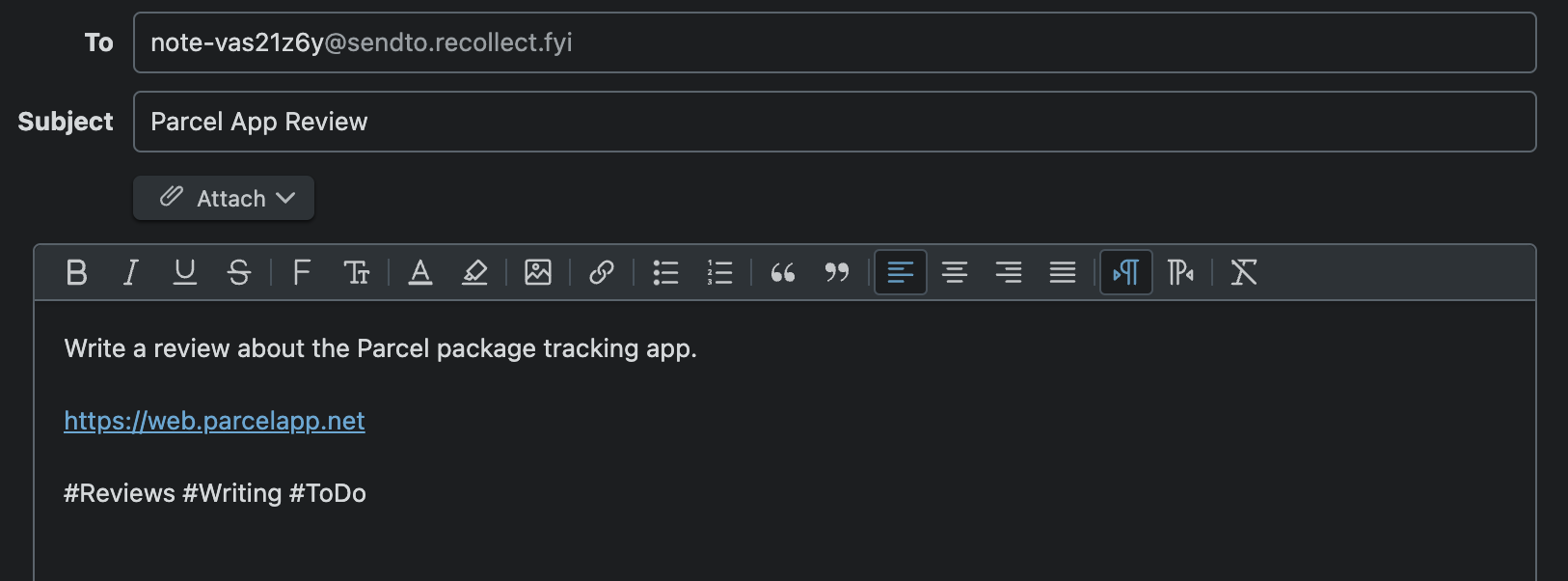
Screenshot of an email compose window addressed to note-vas21z6y@sendto.recollect.fyi with the subject “Parcel App Review,” a body reading “Write a review about the Parcel package tracking app,” a link, and the tags #Reviews #Writing #ToDo.
An email being composed to a Recollect note-creation address, with the subject line becoming the note title and hashtagged words like #Reviews, #Writing, and #ToDo becoming tags.

Shortly after the email is sent, Recollect will convert it into a note.
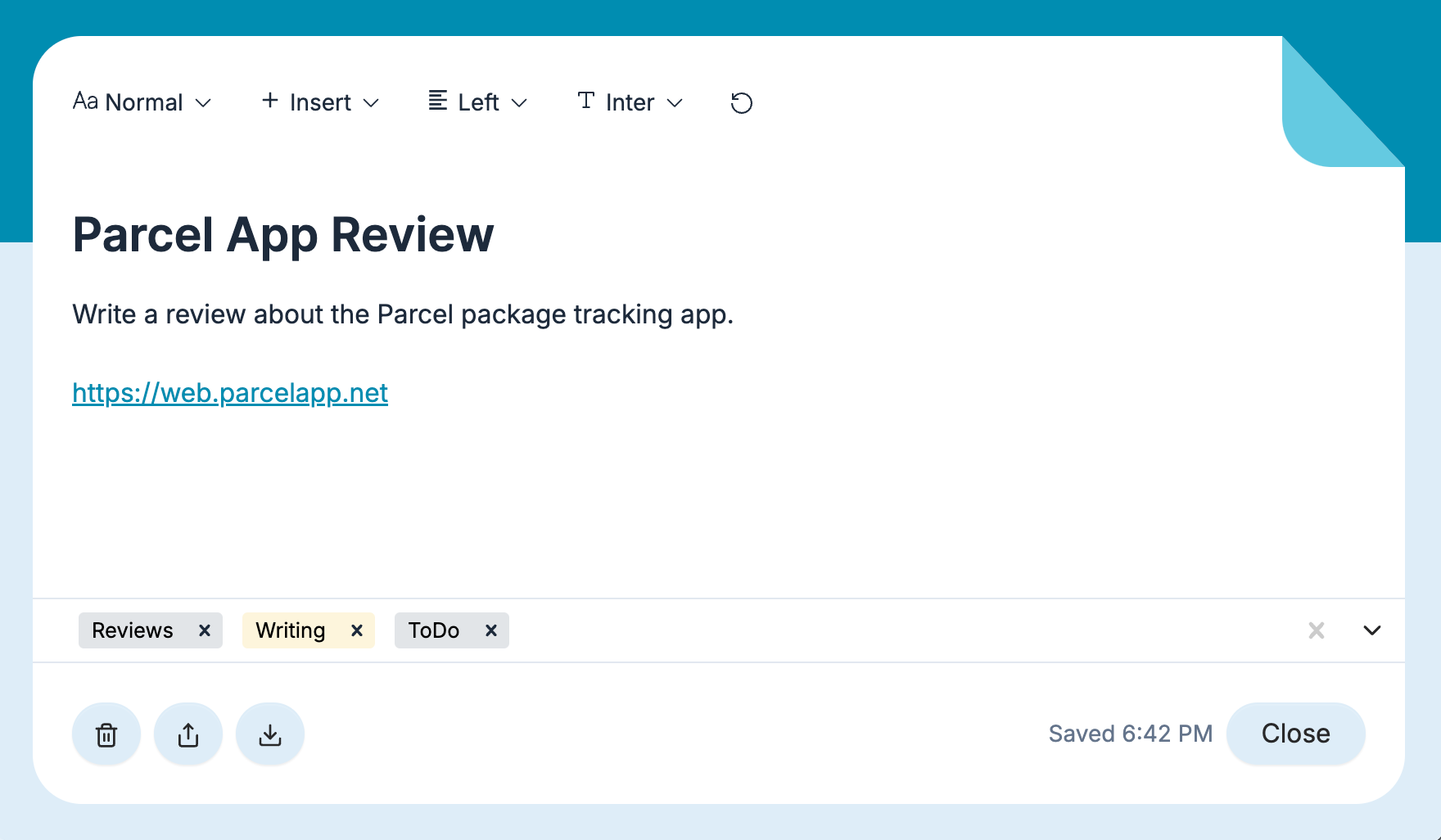
Screenshot of a Recollect note titled “Parcel App Review” with body text “Write a review about the Parcel package tracking app.” and a link to https://web.parcelapp.net, tagged Reviews, Writing, and ToDo.
The finished Recollect note, where the email subject became the title, the message body filled in the content, and the hashtags turned into the Reviews, Writing, and ToDo tags.

Note: File attachments and images currently aren’t supported and will be excluded from the note.