How to share notes
All notes can be shared discreetly with trusted individuals or publicly, like on social media. Shared notes are accessible to anyone with access to the link. After you create the link, you can disable it if you want to stop sharing it. If you disable sharing, the link will no longer work. You can share the note again, but a new link will be created.
Creating a share link for a note
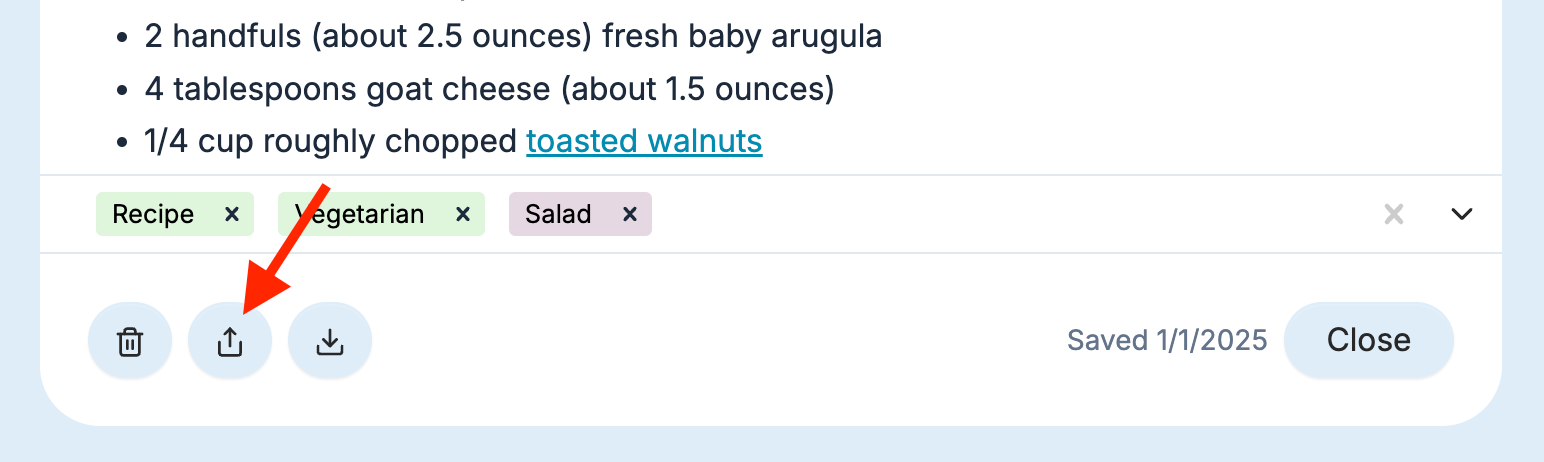
Click on the Share icon at the bottom left of the note window.
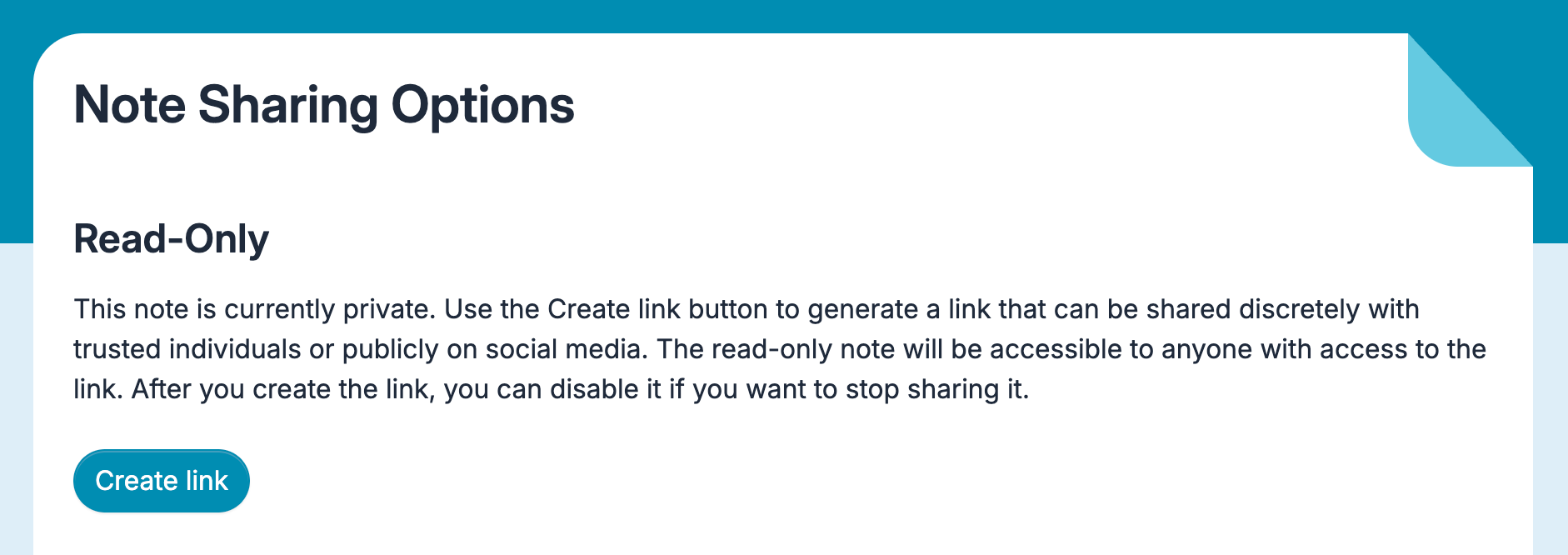
Click the Create link button to generate a new URL to share the note.
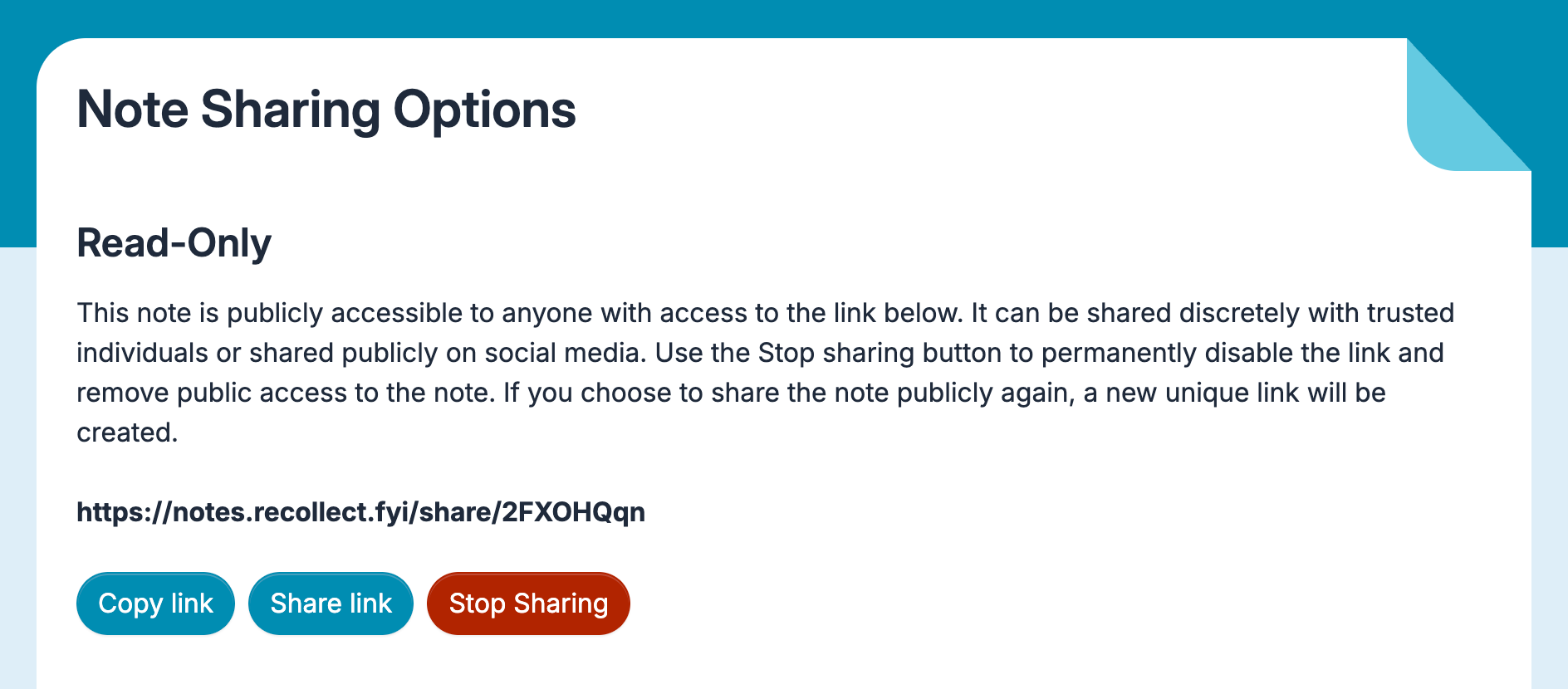
Click Copy link to copy the URL and manually share the link. Click Share link to initiate the native sharing options for the OS. And if you want to stop sharing the note, click the Stop Sharing button, permanently disabling the share link.
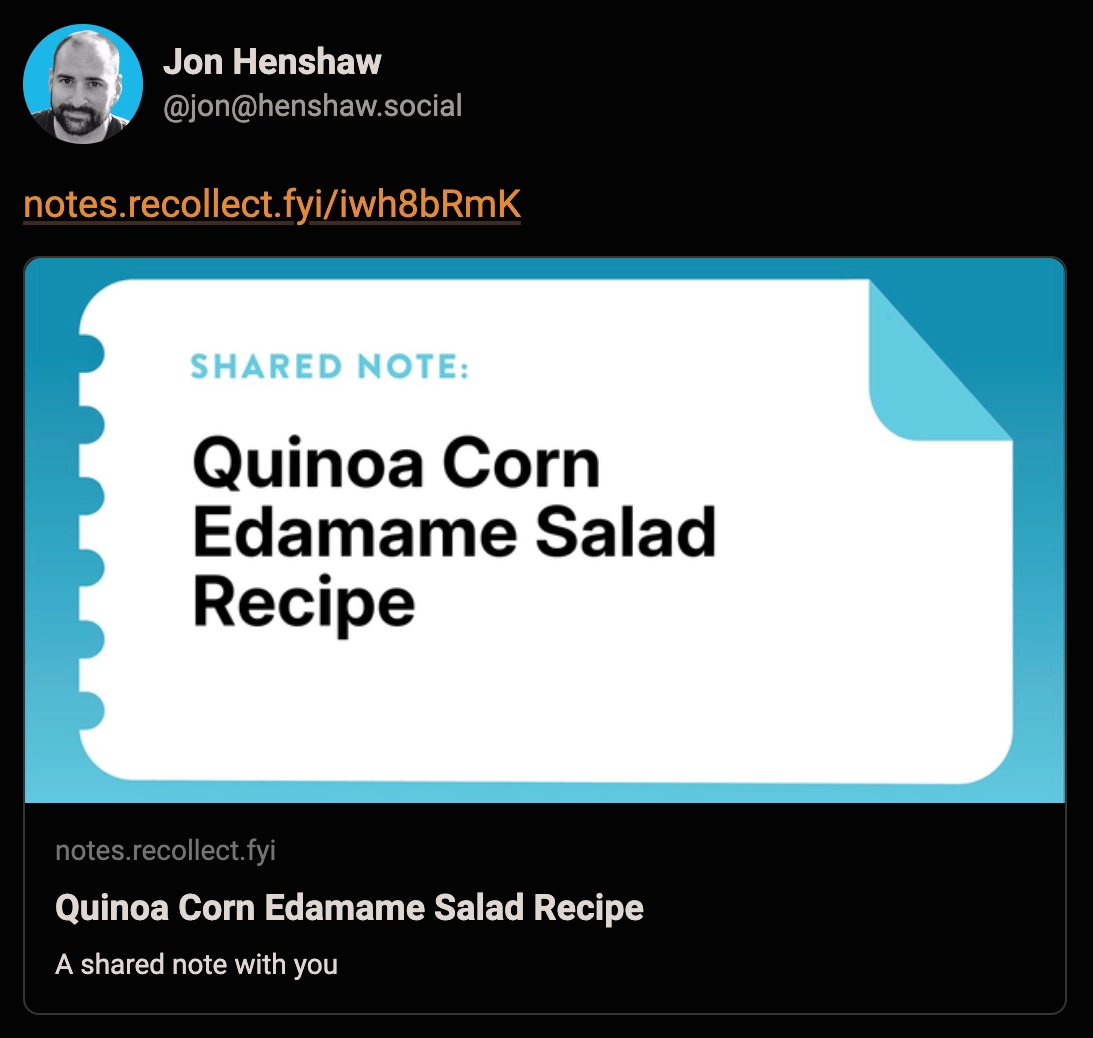
If you share a note publicly, like on social media, an Open Graph image is automatically generated and displayed in the post. The image shows the title of the note, which is the first line.