How to install Recollect on your devices
Recollect is a progressive web app (PWA) that functions best as a standalone app on your computer, tablet, and smartphone. It can be installed on macOS, iOS, iPadOS, Windows, Android, and Linux devices.
Google Chrome
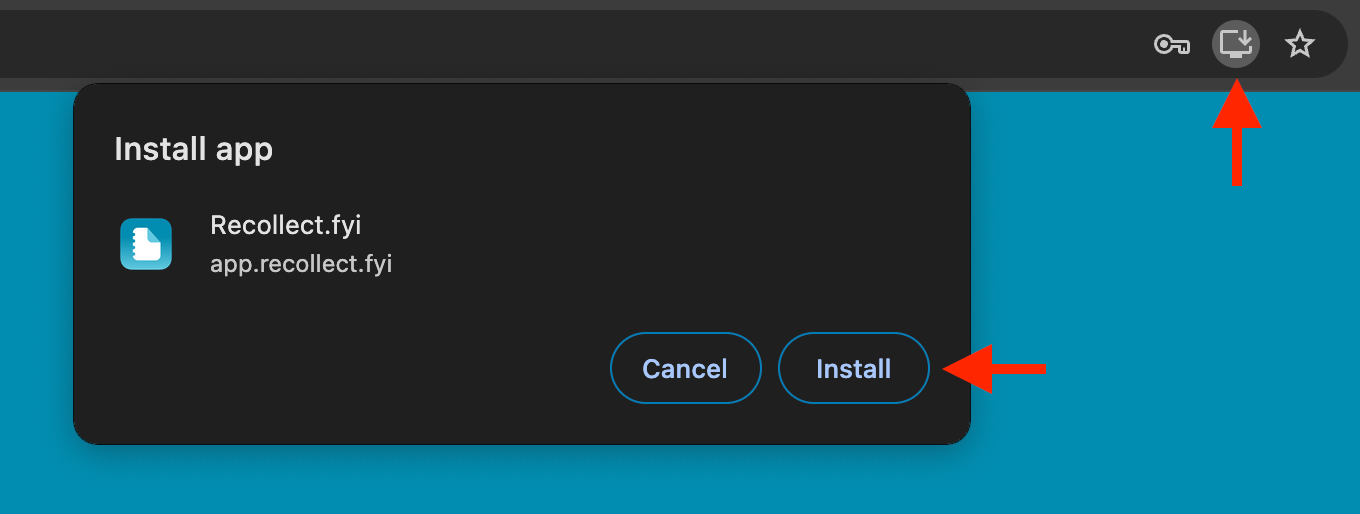
The Chrome browser displays an “Install” icon for PWAs. Navigate to app.recollect.fyi, and click the “Install” icon and then the Install button. That’s it! It’s now installed, the Recollect app should open, and the icon should appear on your Dock.
Safari on macOS
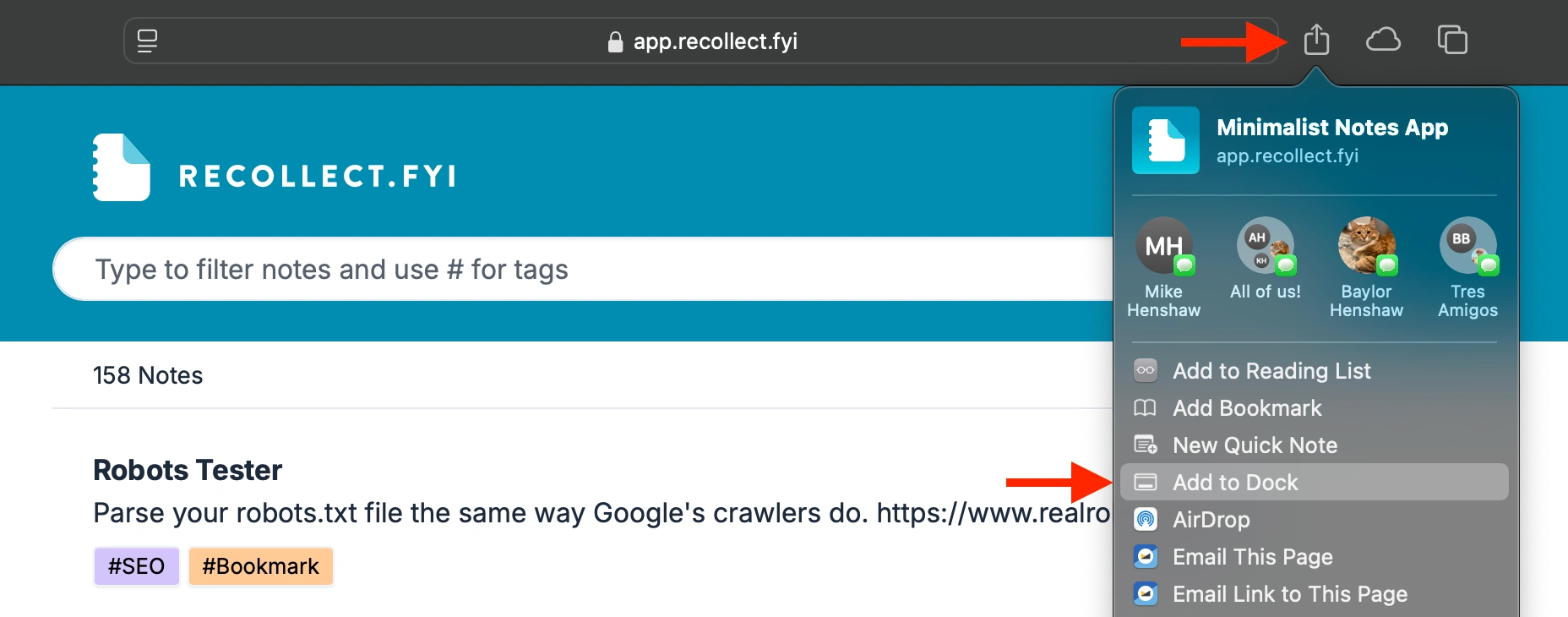
Safari doesn’t display the “Install” icon like Chrome does. Instead, it treats all PWAs and web apps the same. To add Recollect from Safari, click the “Share” icon and then Add to Dock. Recollect will open, and the icon will appear on the Dock.
Edge on Microsoft Windows
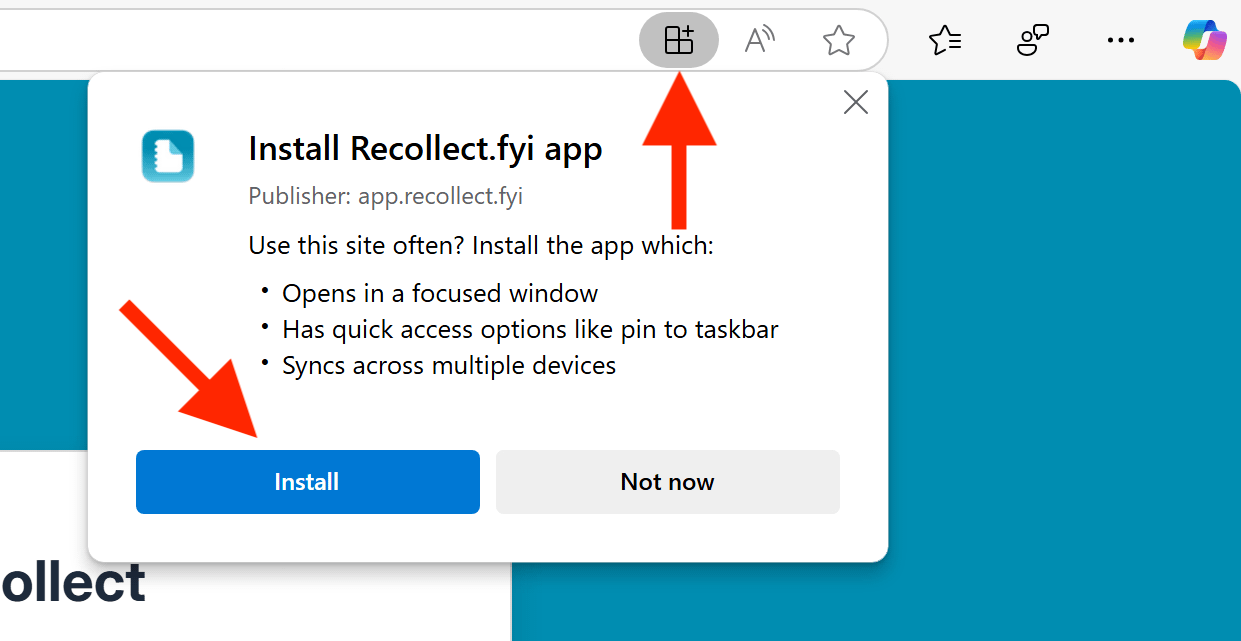
The Edge browser on Microsoft Windows displays an “Install” icon for PWAs. Navigate to app.recollect.fyi, and click the “Install” icon and then the Install button.
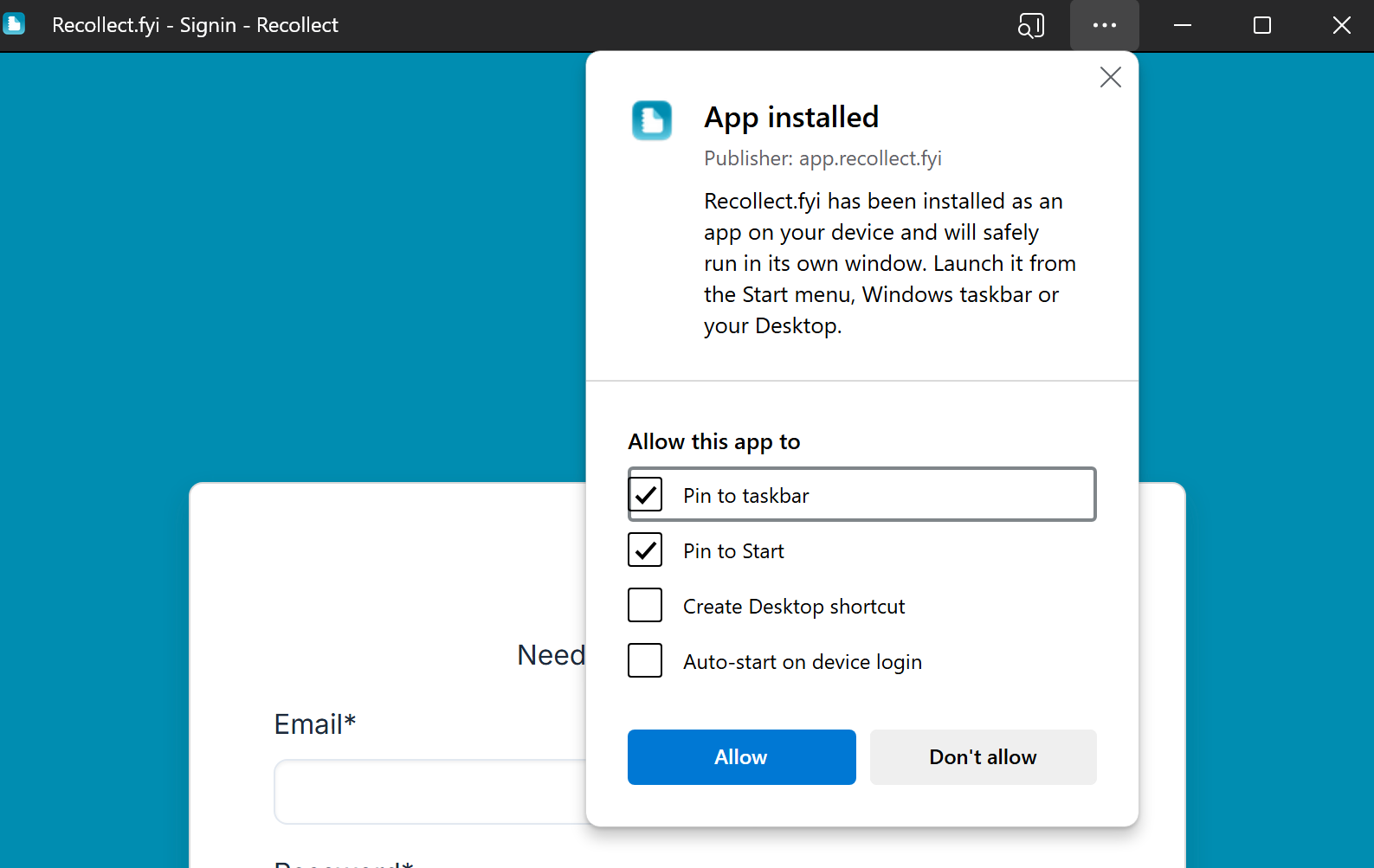
Once it’s installed, select the shortcut locations you’ll use to launch Recollect in Windows.
Safari on iOS and iPadOS
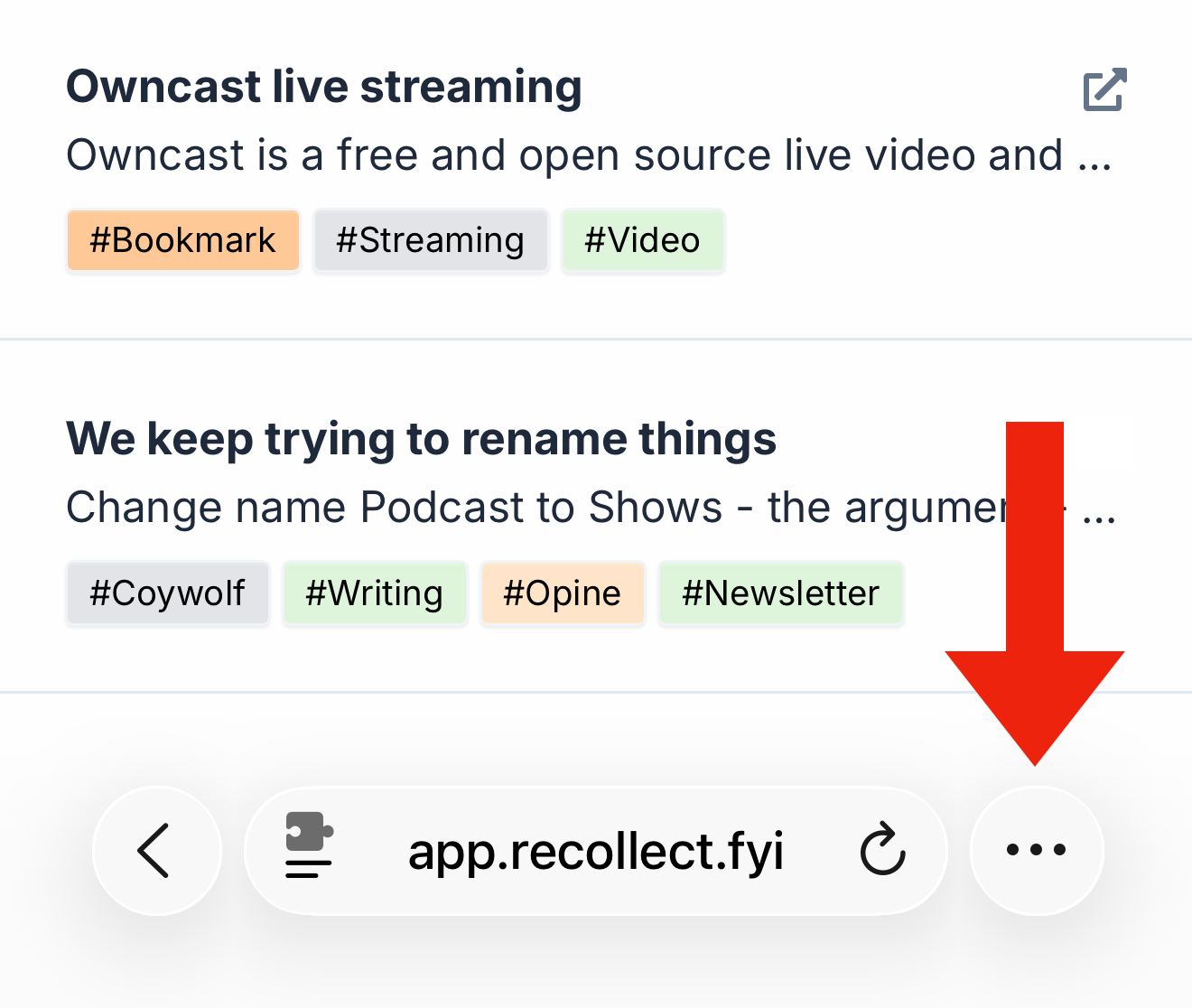
On iPhones and iPads, tap the meatballs (more) menu in Safari.
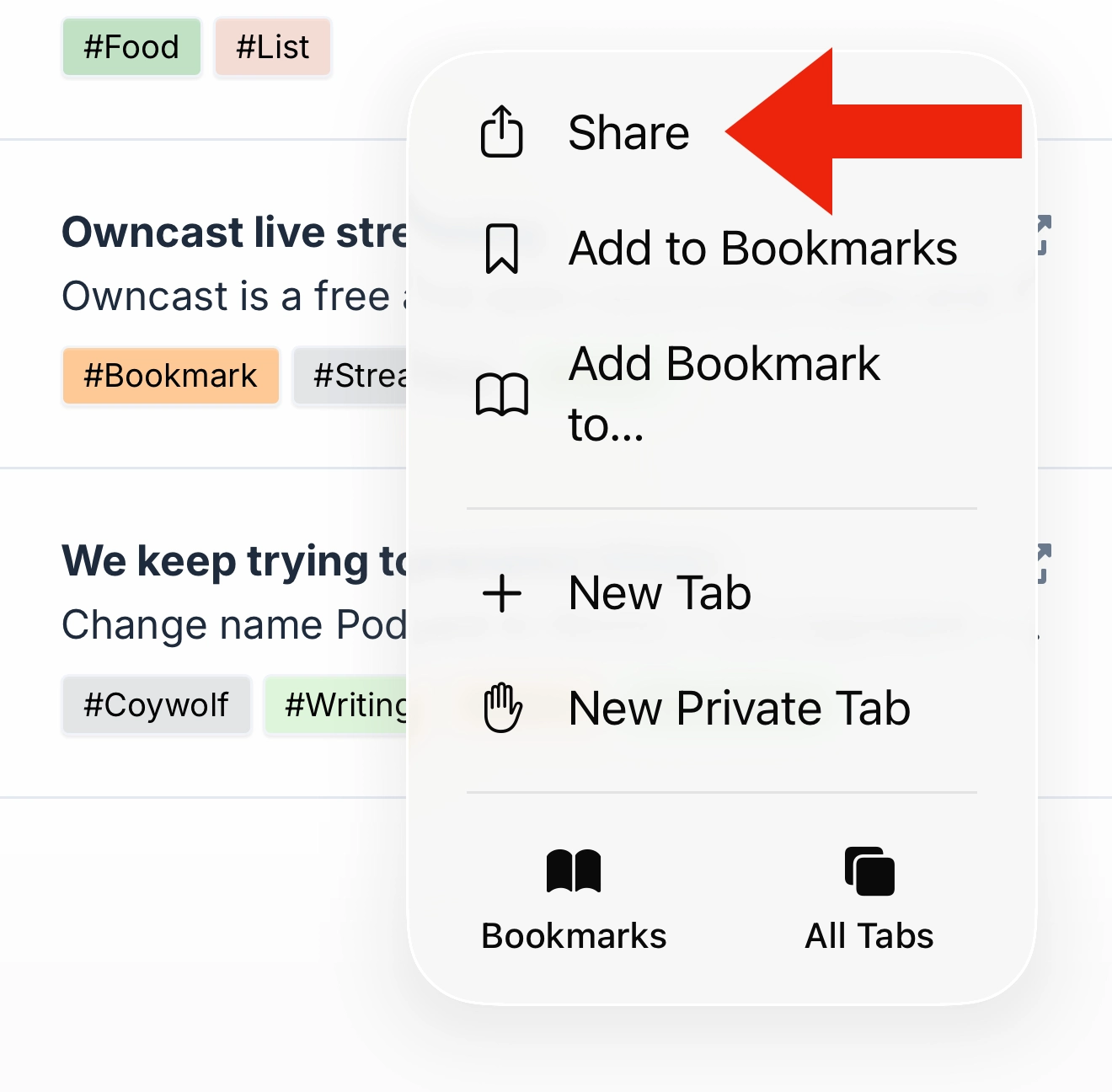
Tap the Share button.
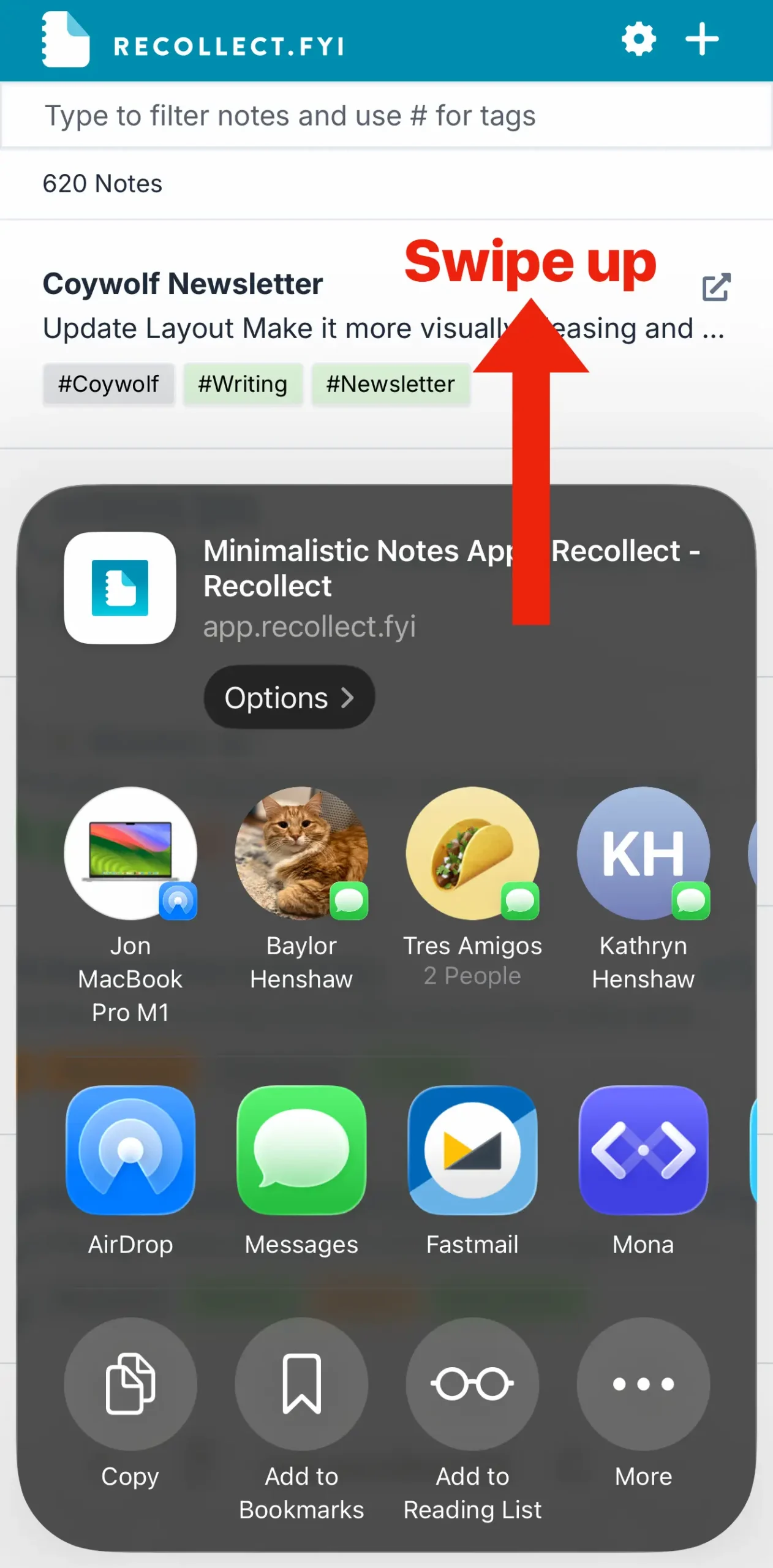
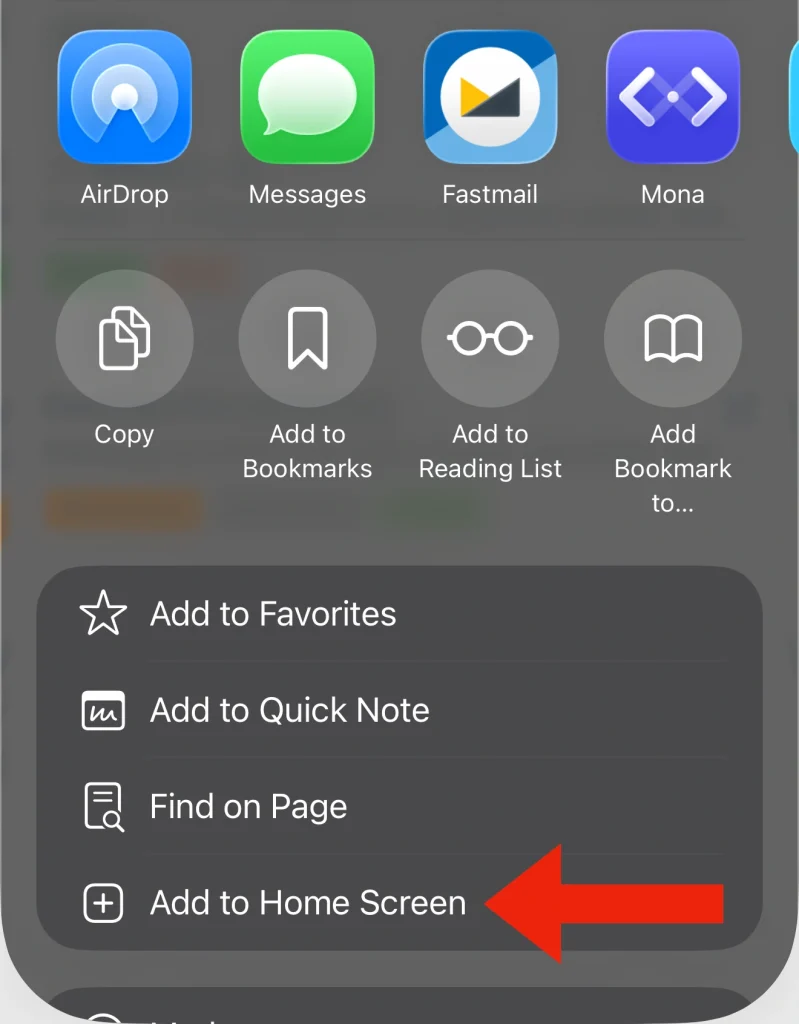
Swipe the sheet up to reveal the Add to Home Screen option.
Tap the Add to Home Screen option at the bottom of the sheet.
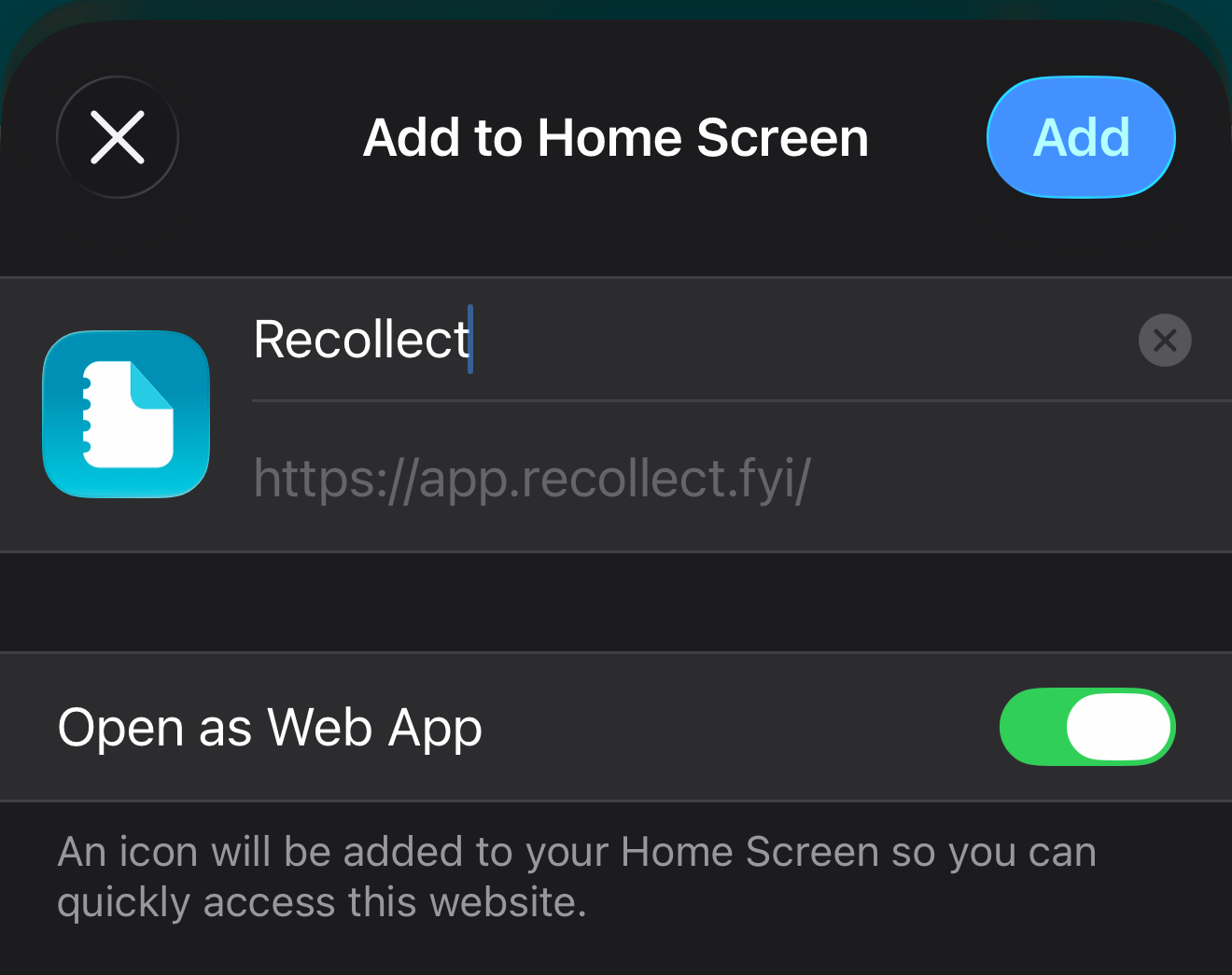
Ensure Open as Web App is toggled on, then click the Add button. The Recollect app icon will appear on the home screen, and you can now use it as a standalone app. Note: You will need to sign back in when you first open it.