How to create tags
Tags can be created in a note or via the Tag Manager.
Create tags in notes
Open a note and click on the tag bar at the bottom.

Start typing the tag name you want to add. If the tag already exists, it will appear in the list, and you can add it.
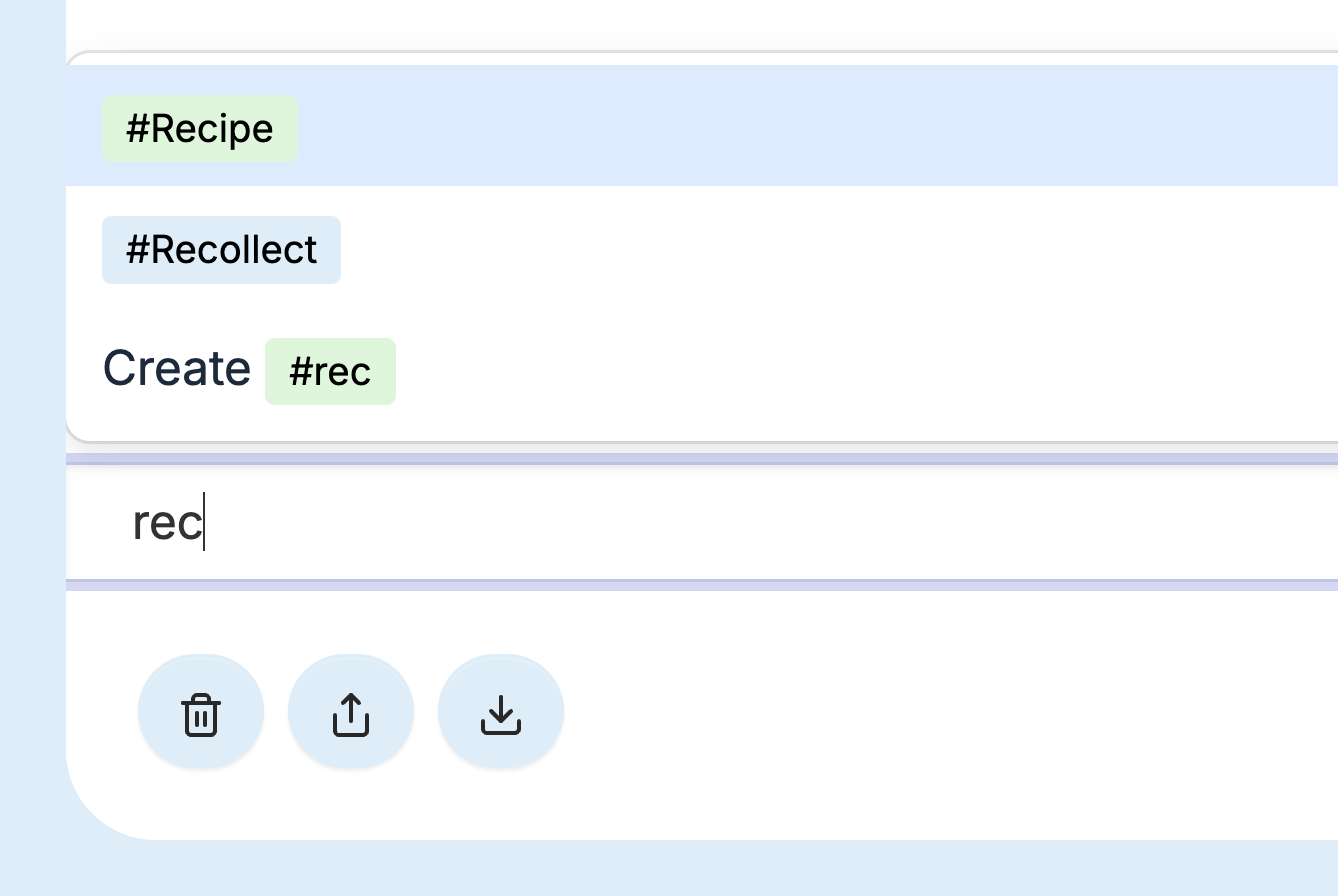
If the tag doesn’t exist, it will be prepended with the word Create. Select that option, and a new tag will be created and added to the note.
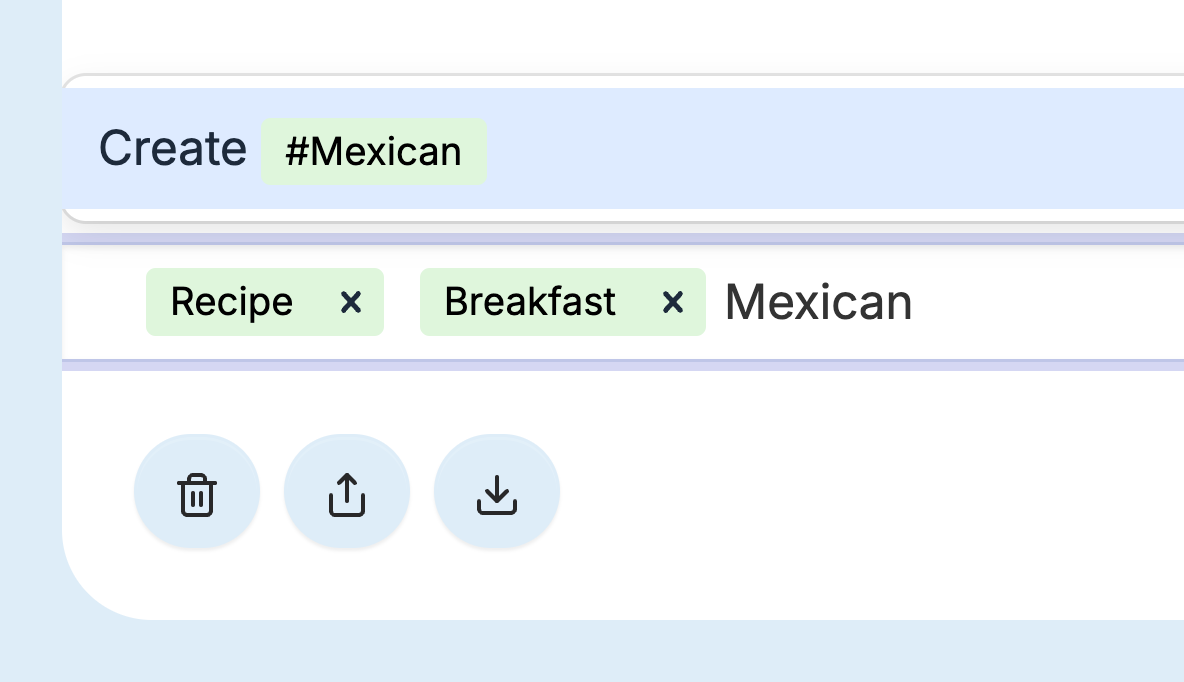
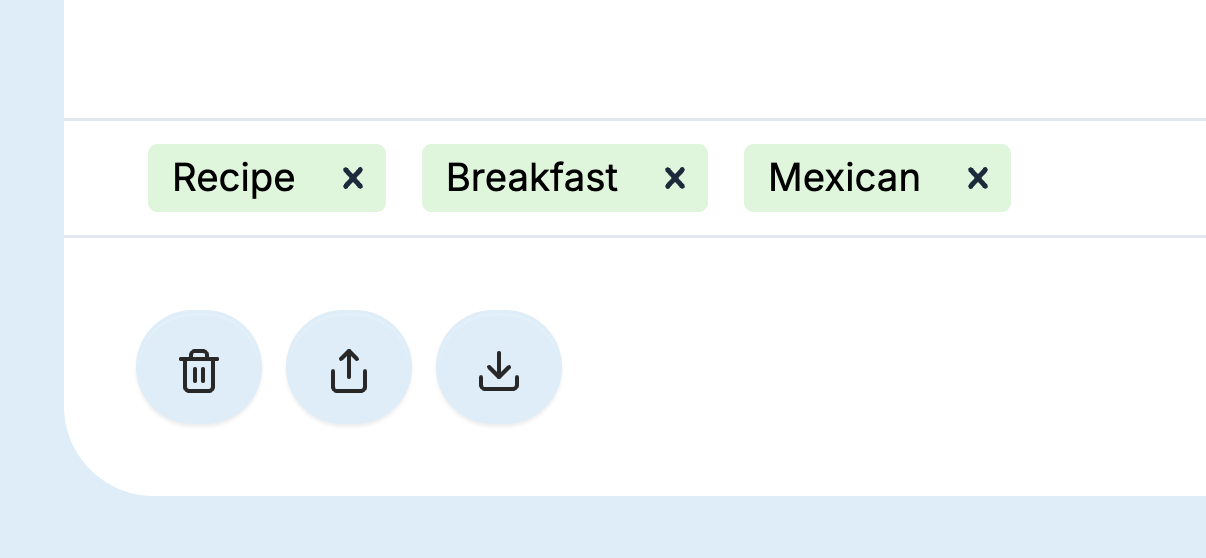
After you create the tag, it will appear like the other tags and can be used in other notes.
Create tags in the Tag Manager
Tags can also be created in the Tag Manager. Click the Gear icon from the notes list view and select Manage Tags.

Click on the New Tag button.

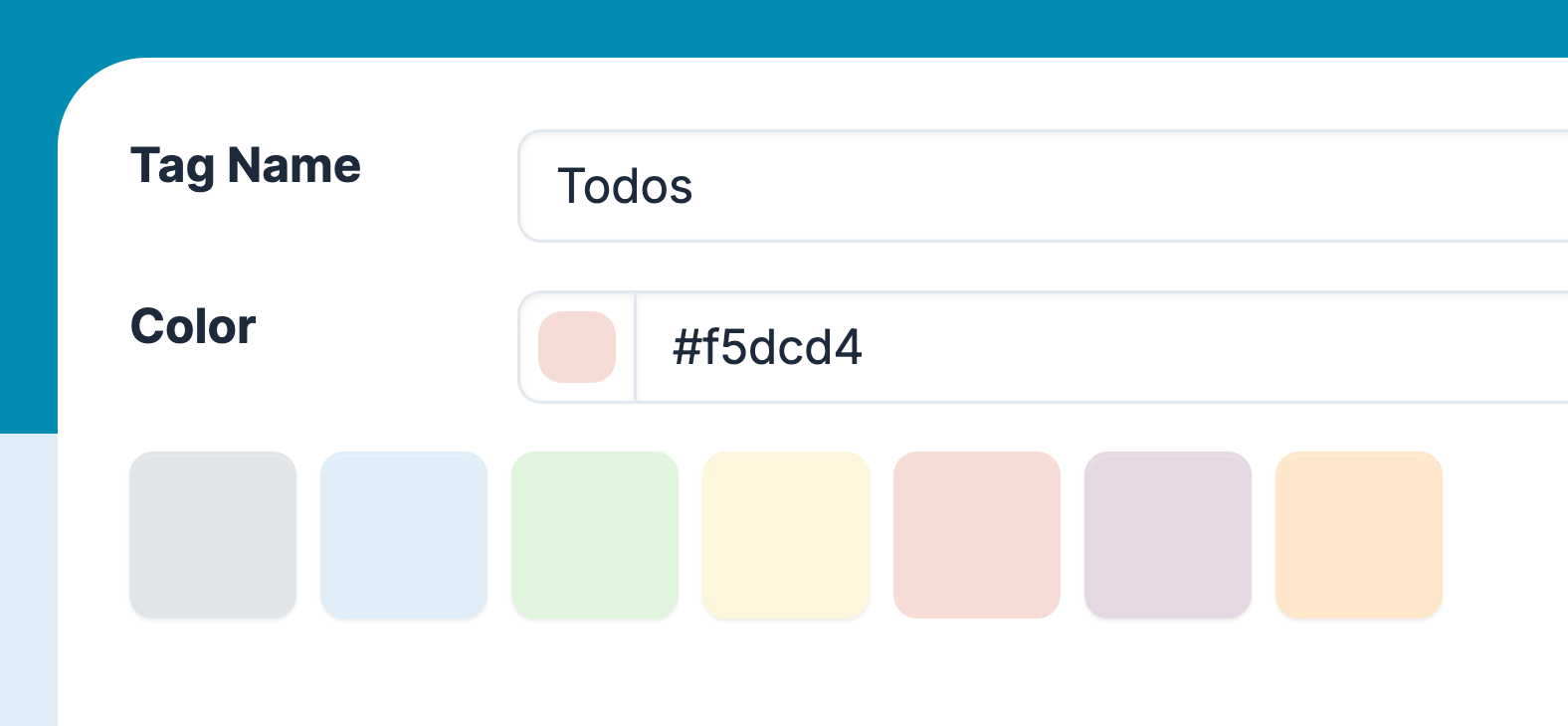
Enter the tag name, choose a color, and then Save the tag.
Next, learn the best way to use tags and manage them.