How to collaborate on notes
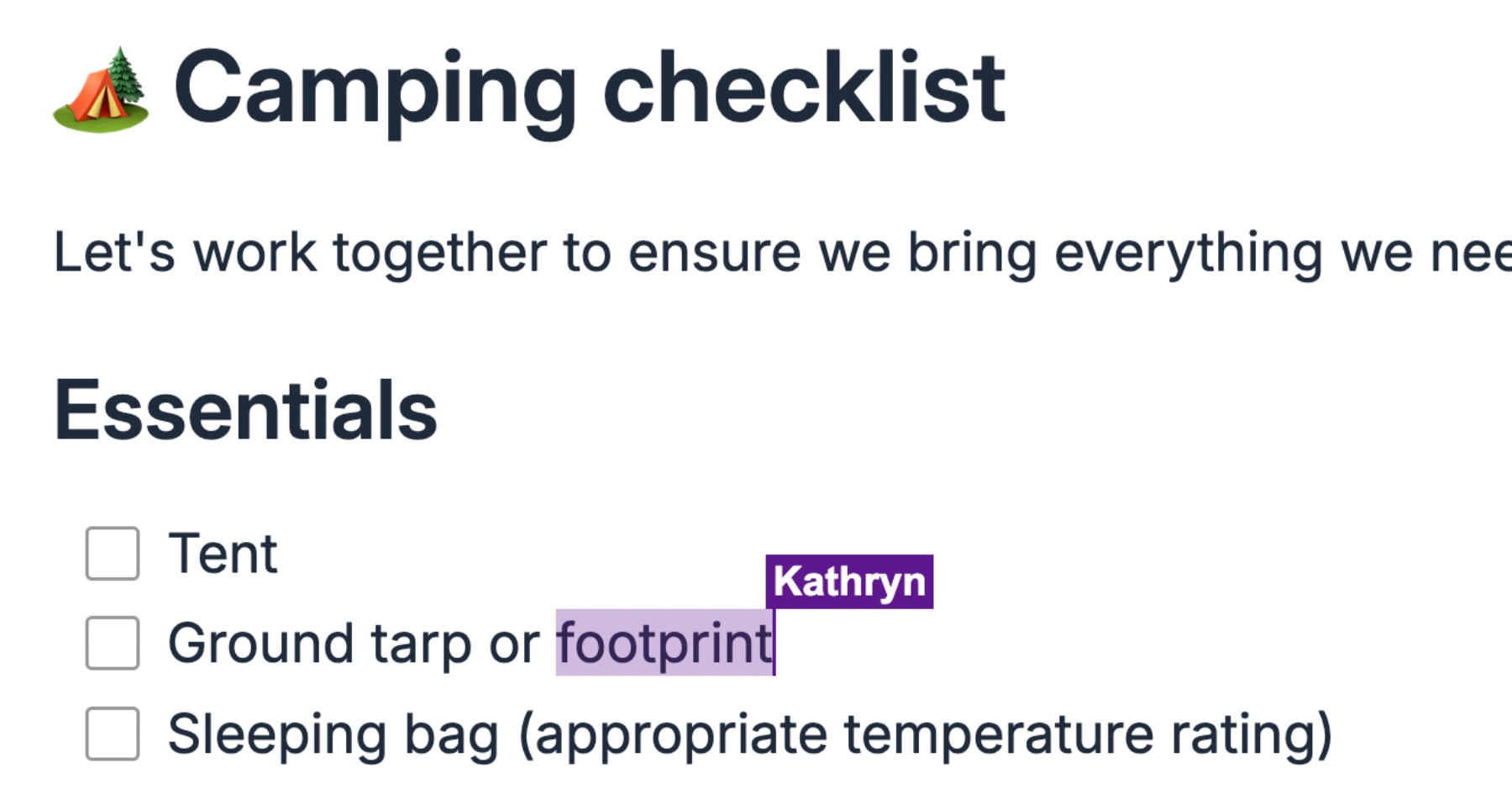
Other people can edit notes in your account when you invite them to collaborate. Once they accept the invitation, they can edit the note in real-time with you and other collaborators, much like Google Docs. Collaborators can be removed at any time. When they are removed, they instantly lose access to the note, and it’s removed from their account.
Creating an invite link for collaboration
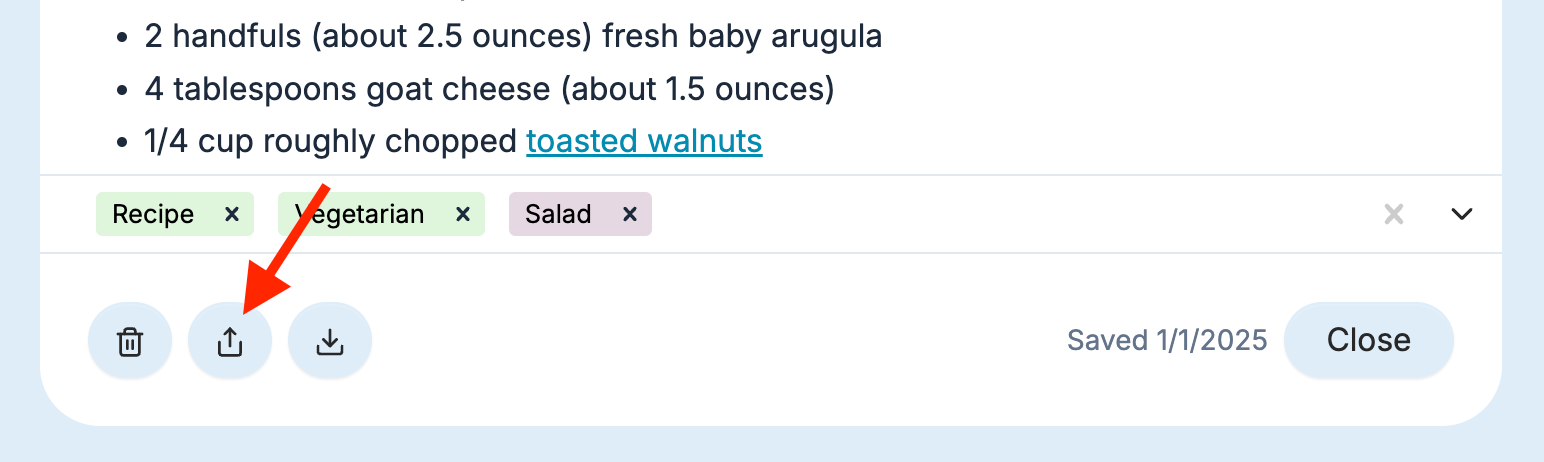
Click on the Share icon at the bottom left of the note window
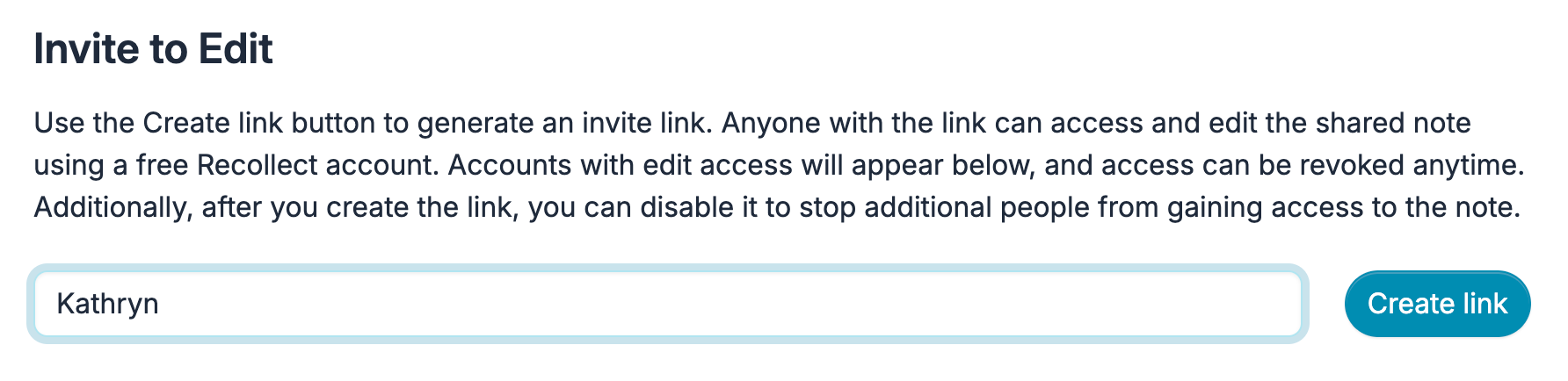
Enter the name of the person you want to invite and then click the Create link button.
Click Copy link to copy the URL and manually share the link. Click Share link to initiate the native sharing options for the OS. And if you want to stop sharing the note, click the Stop Sharing button, permanently disabling the share link and revoking access to the note.
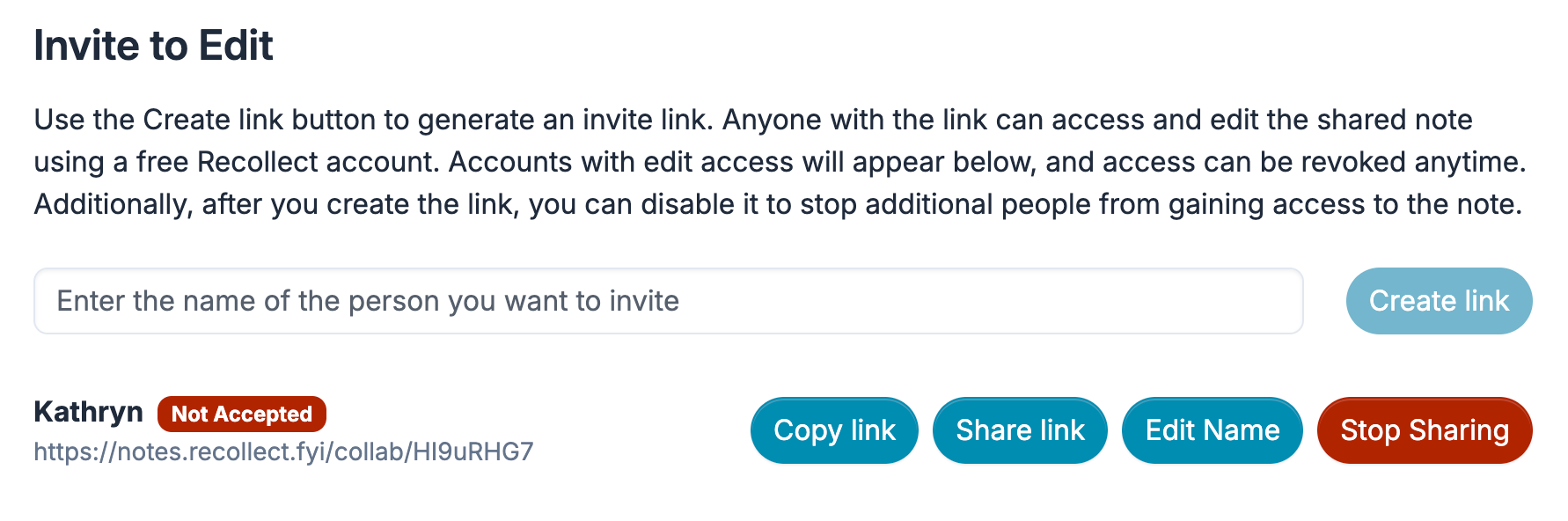
When the invitee accepts, the share status will change from Not Accepted to Accepted. If you want to update the name that appear when collaborating in real-time, click the Edit Name button. And if you want to stop sharing the note, click the Stop Sharing button, permanently disabling the share link and revoking access to the note.

You can invite as many people to a note that you want. If you’re editing a note at the same time as one of your invitees, their name will appear in the note as they edit it alongside you in real-time.