How to import notes
Recollect supports importing Markdown (.md), plain text (.txt), and Evernote (.enex) notes; documents such as Word (.docx), Excel (.xlsx), OpenDocument (.odt, .ods), rich text (.rtf), and CSV (.csv); and Netscape Bookmarks (.htm and .html) and OPML (.opml and .xml) files for bookmarks. The imported note’s hashtags and bookmark folders will be converted to tags and associated with the note.
Importing notes
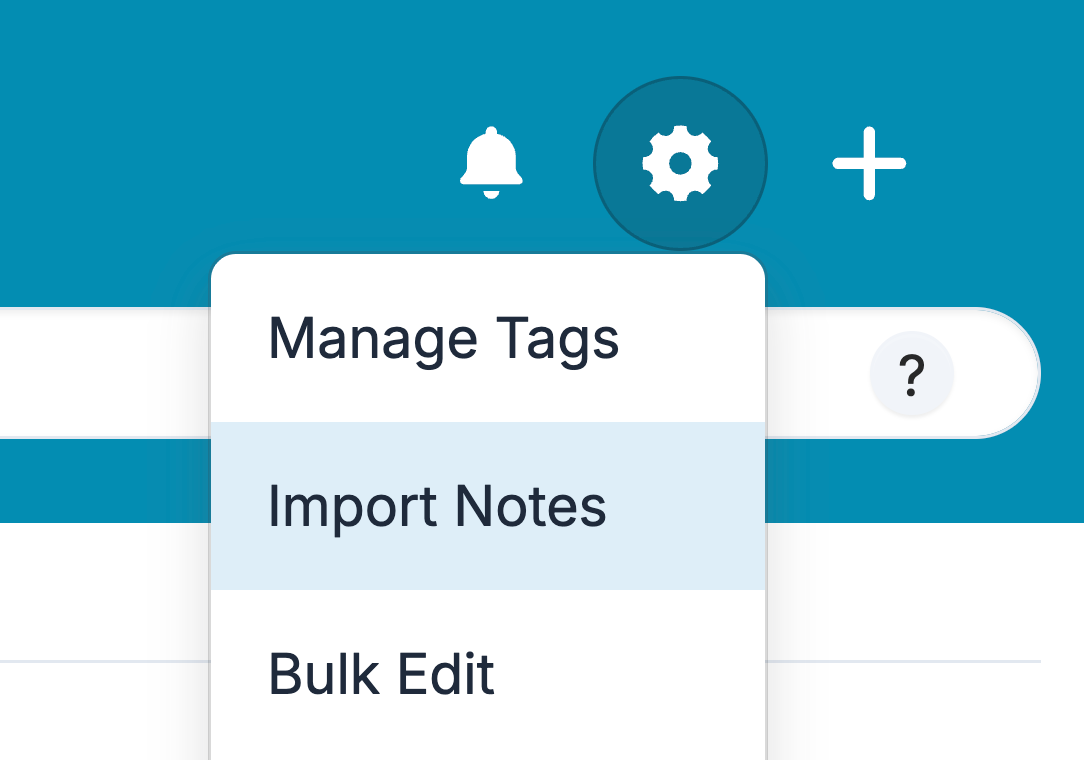
Click the Gear icon from the notes list view and select Import Notes.
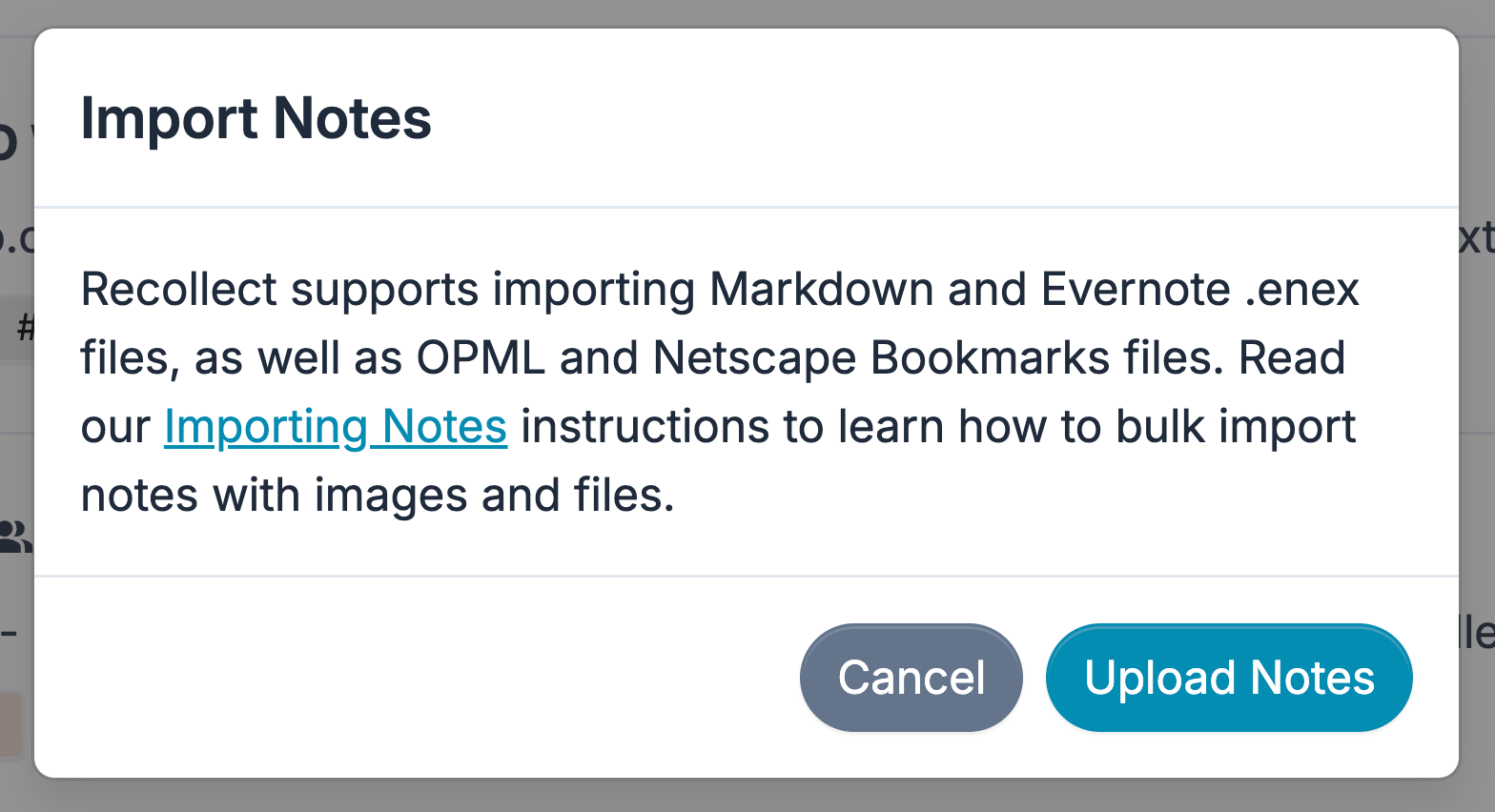
A modal will appear specifying the supported file types. Click the Upload Notes button to select one or many note files or a zip (.zip) file for bulk importing notes with images and files.
Importing documents
Recollect can also turn documents into notes. Upload Word (.docx, .doc, .docm), Excel (.xlsx, .xls, .xlsm, .xlsb), OpenDocument (.odt, .ods), rich text (.rtf), or CSV (.csv) files the same way, and each document is converted into a new note. PDF and PowerPoint files are not currently supported.
Bulk importing notes with attachments
The Evernote .enex export file contains all note attachments, so Recollect will automatically import the images and files associated with notes when that file is uploaded.
For Markdown files, one or more .md files can be selected at one time or they can be put into a single zip file and uploaded. If the notes include image references, and they point to public URLs, Recollect will attempt to download the images and serve them from its CDN. Otherwise it will continue to use the image URL if it can’t retrieve them.
If you exported your notes from an app like Apple Notes, and you added at least one image or file to a note, the export will include a folder containing those attachments, and the Markdown files will reference the files in that folder.
To bulk upload notes with attachments, you will need to compress the folder containing the Markdown files and attachments folder(s) into a single zip file.
Importing Apple Notes
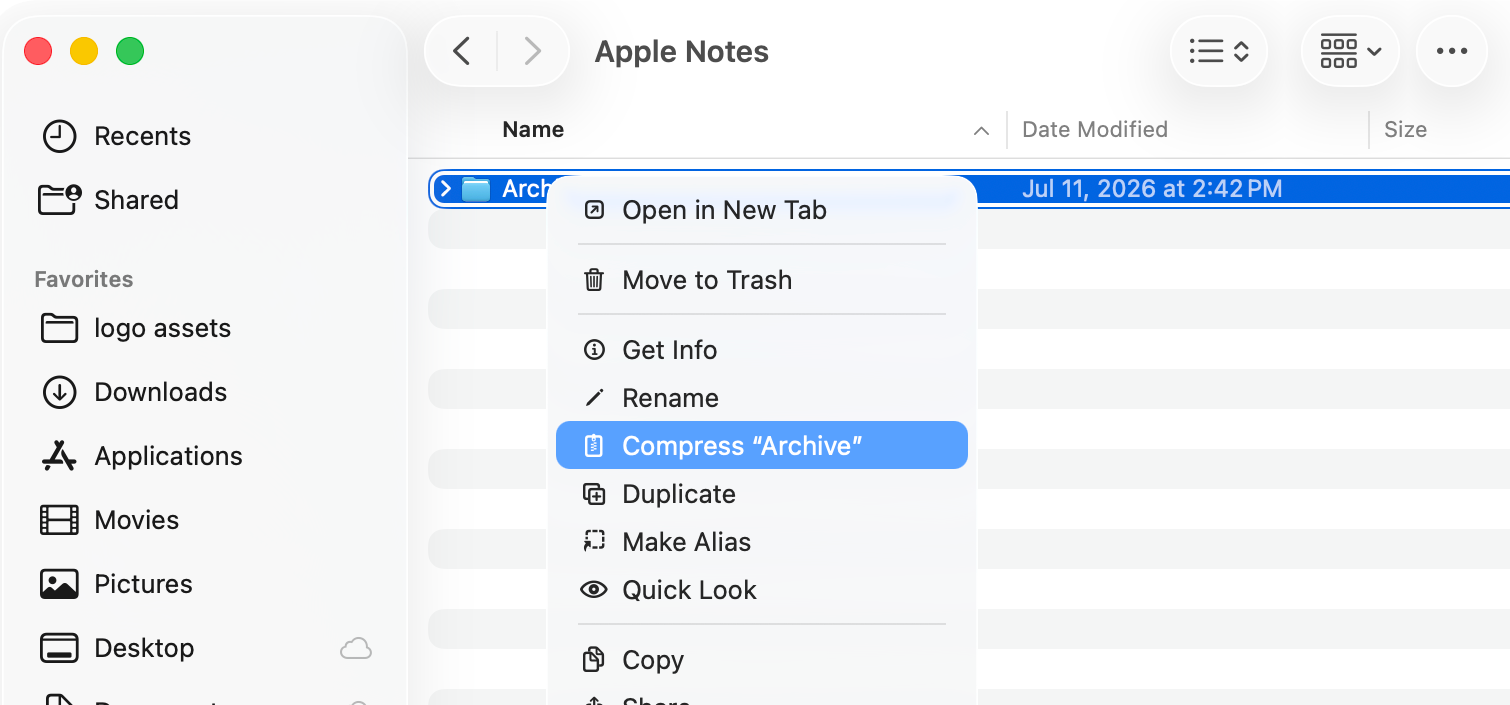
Apple Notes exports its notes into a folder called Archive. Locate the folder in Finder where you exported and saved it, right-click on the folder, and select Compress “Archive”.
Upload the Archive.zip file, and Recollect will automatically include the images and files with the notes they’re associated with.